
Skip to content
The Smart DMS Knowledge Base
  • Home
  • Documentation
  • Encyclopedia
Contact Us
Contact Us
The Smart DMS Knowledge Base
  • Home
  • Documentation
  • Encyclopedia
Contact Us
Contact Us

Introduction

3
  • Overview of The Smart DMS
  • Getting Started with The Smart DMS
  • Understanding The Smart DMS Architecture

Common

31
  • Bookmarks
    • How To Add & Remove Bookmarks
  • Communication
    • Communication Overview
    • Settings
      • Communication Settings Overview
      • Email Settings
        • How to Configure Outgoing Email (SMTP) Settings
        • Email Templates
      • SMS Settings
        • SMS Shortcode & API Settings
        • SMS Message Templates
      • WhatsApp Settings
        • Official WhatsApp API Settings
        • WhatsApp Templates
    • Panel Banners
      • Panel Banners
    • WhatsApp
      • WhatsApp Overview
      • How to Setup a WhatsApp Web Session
      • How to Subscribe to System Updates in WhatsApp Groups
    • Web Push Subscribers
      • Web Push Subscribers Overview
  • Content Management
    • How To Add Content Such As FAQs & Guides
    • Content Management Overview in The Smart DMS
    • Categories
      • Managing Content Categories
    • Tags
      • Managing Content Tags
  • Logs
    • Tracking Actions: Understanding Logs in The Smart DMS
  • Notifications
    • How to Enable/Disable Notifications
  • Roles & Permissions
    • User Roles & Permissions Overview
    • Understanding Roles & Permissions Across Central and Tenant Panels
    • How To Create User Roles
  • Search
    • Using the Global Search Bar in The Smart DMS
  • Settings
    • Authentication
      • Authentication Settings
    • General
      • General Settings Overview
      • Do I Use Tenant-Specific or Central Settings
  • Users
    • How to Register a User
    • How To Update a User & Assign Roles
    • How To Bulk Assign User Roles
    • How To Update Your Profile

Central

13
  • Main
    • Dashboard
    • Clients
      • Central Clients
    • Tasks
      • Central Tasks
    • Tenants
      • Tenant Overview — What Is a Tenant in The Smart DMS?
      • How To Create a Tenant
      • Updating a Tenant and Managing Assigned Users
      • Customizing Tenant Labels
    • Payroll
      • Payroll Overview
      • Commissions
      • How to View Your Account Balance
    • Policies
      • Managing Policy Categories
      • Managing Company Policies & Training Manuals in The Smart DMS
    • Subscription
      • How To Renew Your Smart DMS Subscription

Tenant

20
  • How To Access Different Tenants
  • Tenant Dashboard
  • Ecommerce
    • Products
      • How To Create Simple Products
      • How to Create Cable Products in Bulk
      • How To Create Variable Products In Bulk
    • Requisitions
      • How To Request Store Items
      • How To Approve Requisition Items
  • Tasks
    • Task Types
      • Task Types Overview
      • How To Create Task Types
    • Task Management
      • Task Statuses Overview
      • How To Create Tasks
      • How To View Unassigned Tasks
      • How To Mark a Task as Complete / Done
      • How To Start a Task
      • How To End a Task
    • Settings
      • Task Settings
  • Human Resource
    • Employees
      • How To Update Employees
  • Marketing
    • Marketers
      • How to Create a Marketer
    • Commissions
      • Commissions Overview
      • Uncommissioned Tasks
  • Home
  • Documentation
  • Common
  • Communication
  • Settings
  • Communication Settings Overview
View Categories

Communication Settings Overview

1 min read

In The Smart DMS, communication settings — including those for calls, WhatsApp, SMS, and email — can be configured at both the Tenant level and the Central level. However, the system follows a clear priority rule to decide which settings to use when sending messages or initiating communication.

Priority Rule #

Tenant-level communication settings always take priority over Central-level settings.

This means if a Tenant (e.g., a specific branch or business unit) has its own communication credentials configured, the system will use those settings first — even if Central settings are also available.

Example #

Let’s say you’ve configured the following:

  • Central SMS Settings: A default SMS gateway API is set up in the Central Panel
  • Tenant SMS Settings (for Tenant A): A different SMS provider is configured under Tenant A’s settings

If a task update or notification is triggered within Tenant A, the system will use Tenant A’s SMS settings, not the Central default. Only if Tenant A has no SMS settings configured will the system fall back to the Central-level configuration.

Why This Matters #

This layered setup gives you flexibility and control:

  • Each Tenant can use different service providers or dedicated numbers
  • The Central admin team can still provide fallback communication infrastructure
  • Communication remains Tenant-aware, personalized, and manageable at scale

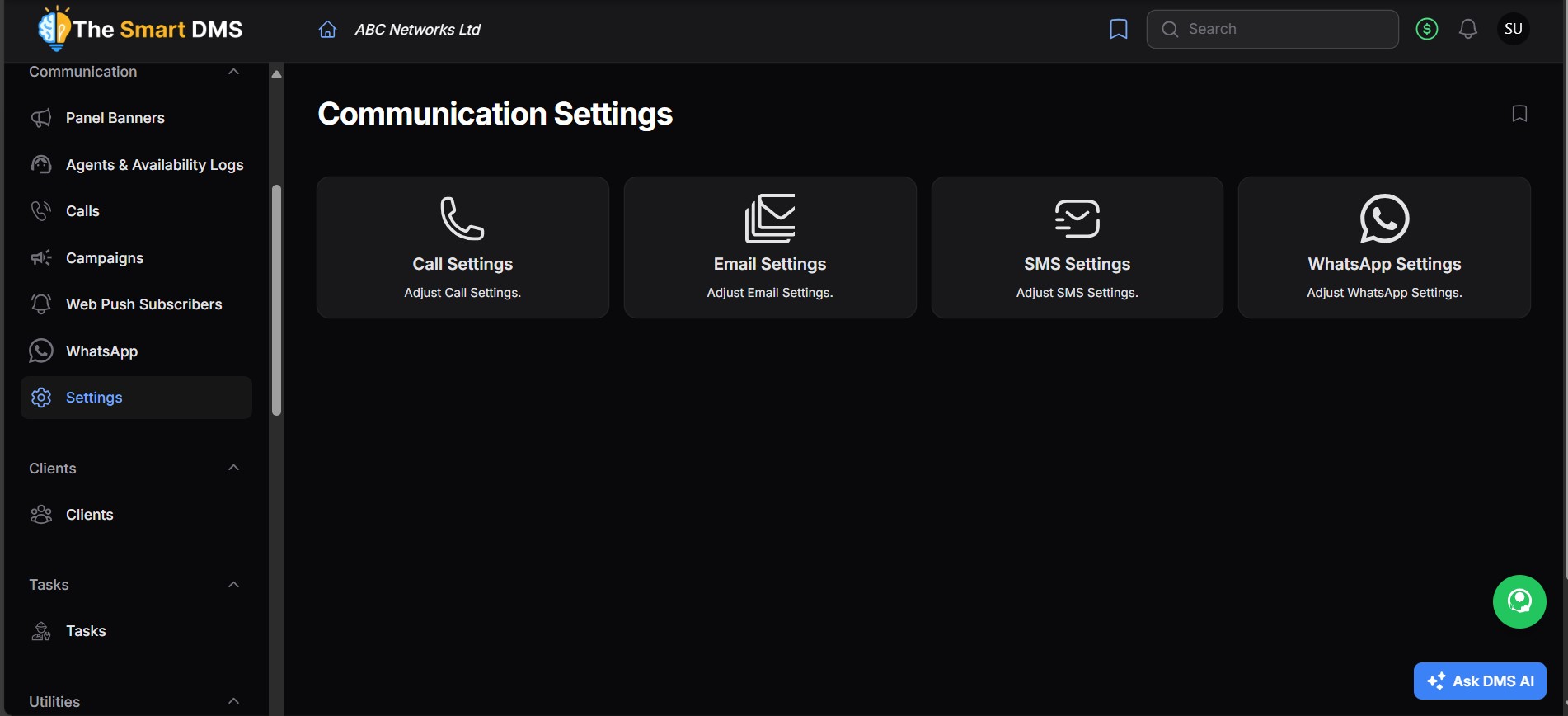
To setup communication settings, go to Communication > Settings, then select Call, Email, SMS or WhatsApp settings.
Share This Article :

  • Facebook
  • X
  • LinkedIn
  • Pinterest
Still stuck? How can we help?

How can we help?

Table of Contents
  • Priority Rule
  • Example
  • Why This Matters

123 Fifth Avenue, New York, NY 12004, USA.
+1 123 456 78 90
[email protected]

Copyright © 2025 The Smart DMS Knowledge Base