
Skip to content
The Smart DMS Knowledge Base
  • Home
  • Documentation
  • Encyclopedia
Contact Us
Contact Us
The Smart DMS Knowledge Base
  • Home
  • Documentation
  • Encyclopedia
Contact Us
Contact Us

Introduction

3
  • Overview of The Smart DMS
  • Getting Started with The Smart DMS
  • Understanding The Smart DMS Architecture

Common

31
  • Bookmarks
    • How To Add & Remove Bookmarks
  • Communication
    • Communication Overview
    • Settings
      • Communication Settings Overview
      • Email Settings
        • How to Configure Outgoing Email (SMTP) Settings
        • Email Templates
      • SMS Settings
        • SMS Shortcode & API Settings
        • SMS Message Templates
      • WhatsApp Settings
        • Official WhatsApp API Settings
        • WhatsApp Templates
    • Panel Banners
      • Panel Banners
    • WhatsApp
      • WhatsApp Overview
      • How to Setup a WhatsApp Web Session
      • How to Subscribe to System Updates in WhatsApp Groups
    • Web Push Subscribers
      • Web Push Subscribers Overview
  • Content Management
    • How To Add Content Such As FAQs & Guides
    • Content Management Overview in The Smart DMS
    • Categories
      • Managing Content Categories
    • Tags
      • Managing Content Tags
  • Logs
    • Tracking Actions: Understanding Logs in The Smart DMS
  • Notifications
    • How to Enable/Disable Notifications
  • Roles & Permissions
    • User Roles & Permissions Overview
    • Understanding Roles & Permissions Across Central and Tenant Panels
    • How To Create User Roles
  • Search
    • Using the Global Search Bar in The Smart DMS
  • Settings
    • Authentication
      • Authentication Settings
    • General
      • General Settings Overview
      • Do I Use Tenant-Specific or Central Settings
  • Users
    • How to Register a User
    • How To Update a User & Assign Roles
    • How To Bulk Assign User Roles
    • How To Update Your Profile

Central

13
  • Main
    • Dashboard
    • Clients
      • Central Clients
    • Tasks
      • Central Tasks
    • Tenants
      • Tenant Overview — What Is a Tenant in The Smart DMS?
      • How To Create a Tenant
      • Updating a Tenant and Managing Assigned Users
      • Customizing Tenant Labels
    • Payroll
      • Payroll Overview
      • Commissions
      • How to View Your Account Balance
    • Policies
      • Managing Policy Categories
      • Managing Company Policies & Training Manuals in The Smart DMS
    • Subscription
      • How To Renew Your Smart DMS Subscription

Tenant

20
  • How To Access Different Tenants
  • Tenant Dashboard
  • Ecommerce
    • Products
      • How To Create Simple Products
      • How to Create Cable Products in Bulk
      • How To Create Variable Products In Bulk
    • Requisitions
      • How To Request Store Items
      • How To Approve Requisition Items
  • Tasks
    • Task Types
      • Task Types Overview
      • How To Create Task Types
    • Task Management
      • Task Statuses Overview
      • How To Create Tasks
      • How To View Unassigned Tasks
      • How To Mark a Task as Complete / Done
      • How To Start a Task
      • How To End a Task
    • Settings
      • Task Settings
  • Human Resource
    • Employees
      • How To Update Employees
  • Marketing
    • Marketers
      • How to Create a Marketer
    • Commissions
      • Commissions Overview
      • Uncommissioned Tasks
  • Home
  • Documentation
  • Tenant
  • Tasks
  • Task Management
  • How To Create Tasks
View Categories

How To Create Tasks

3 min read

The Task creation form allows you to assign and track work across your organization, such as installations, repairs, inspections, or any custom activity you define. To create a task, go to Tasks > Add New.
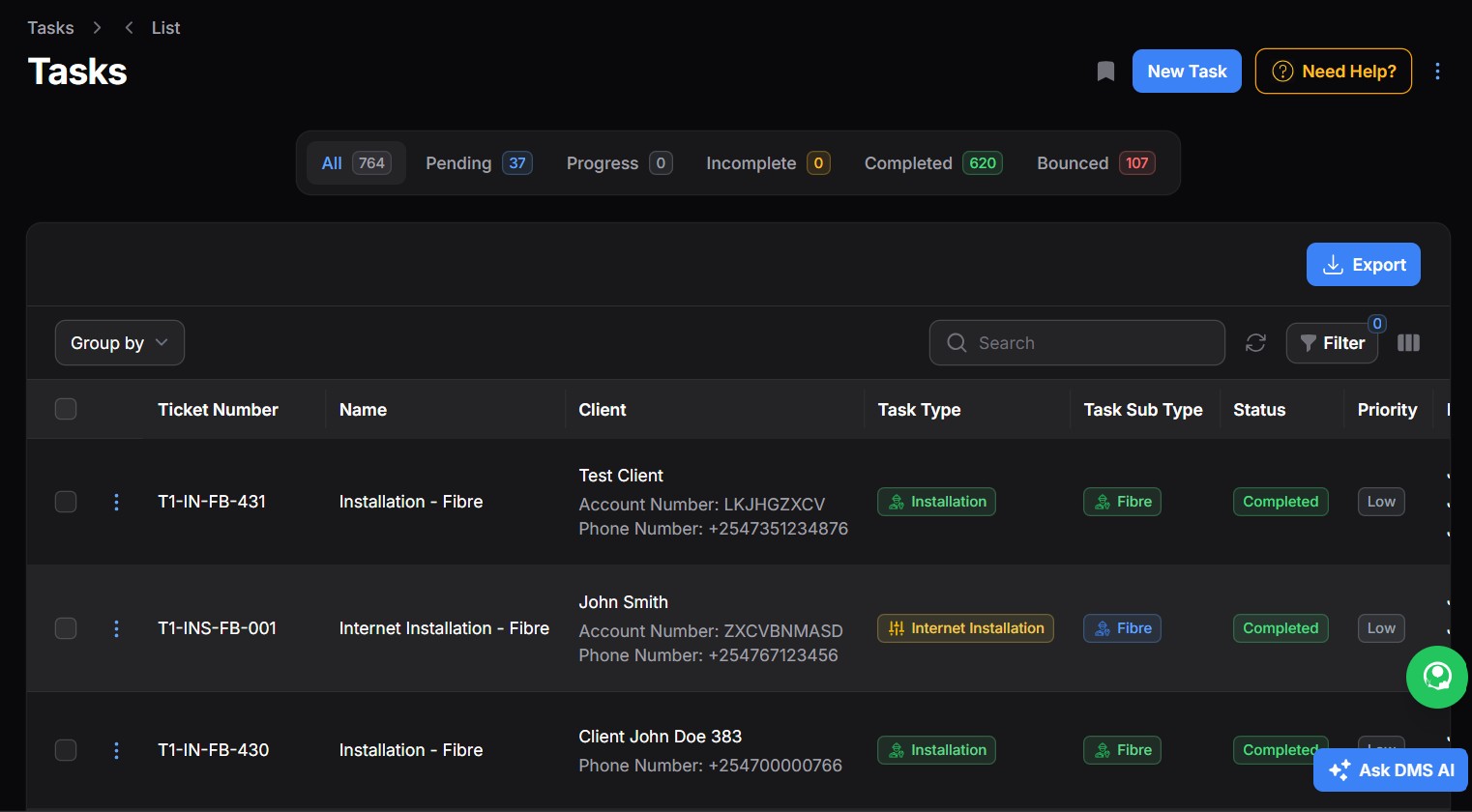
Tasks Table

Form Field Details #

1. Task Name, Type & Sub Type #
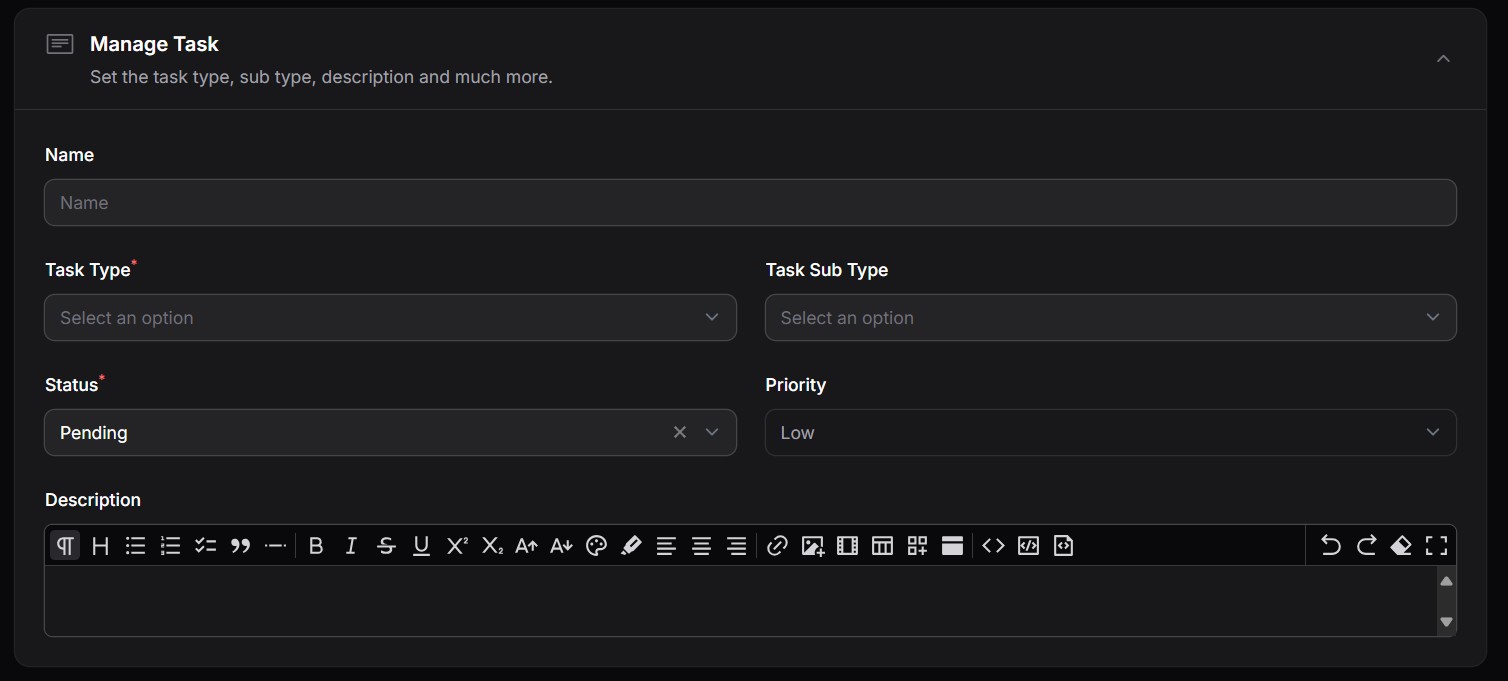
Basic Fields

Set the basic details of the task:

  • Name: Task name. (If you would like the system to automatically generate the task name, go to Tasks > Settings and enable the automatic task generation option. The task name will be generated automatically from the task type and task sub type).
  • Task Type: e.g. Installation, Inspection, Maintenance.
  • Task Sub-Type: Optional categorization (e.g. for Installation: Fiber, CCTV, Solar).
  • Status: Task’s current state (e.g. Pending, In Progress, Completed).
  • Priority: Low, Medium, High—used to prioritize execution.
  • Description: Free-text field to describe the work to be done.

The task types and sub types are defined in the Task Types page. Learn more here.

2. Marketer Details #

If a marketer referred the client for this task, select them here. This helps track commissions and performance. Learn how to create a marketer here.

Marketer Fields

3. Client and Account Assignment #

Client Fields

Select the client and specific account this task is for.

Tip: If the dropdown shows a + icon, it means you can add a new record directly from the form (e.g. a new client or account).

If a selected item has a pencil icon, clicking it lets you edit the record directly from the form (e.g. editing a client or location).

4. Associated Attachments #
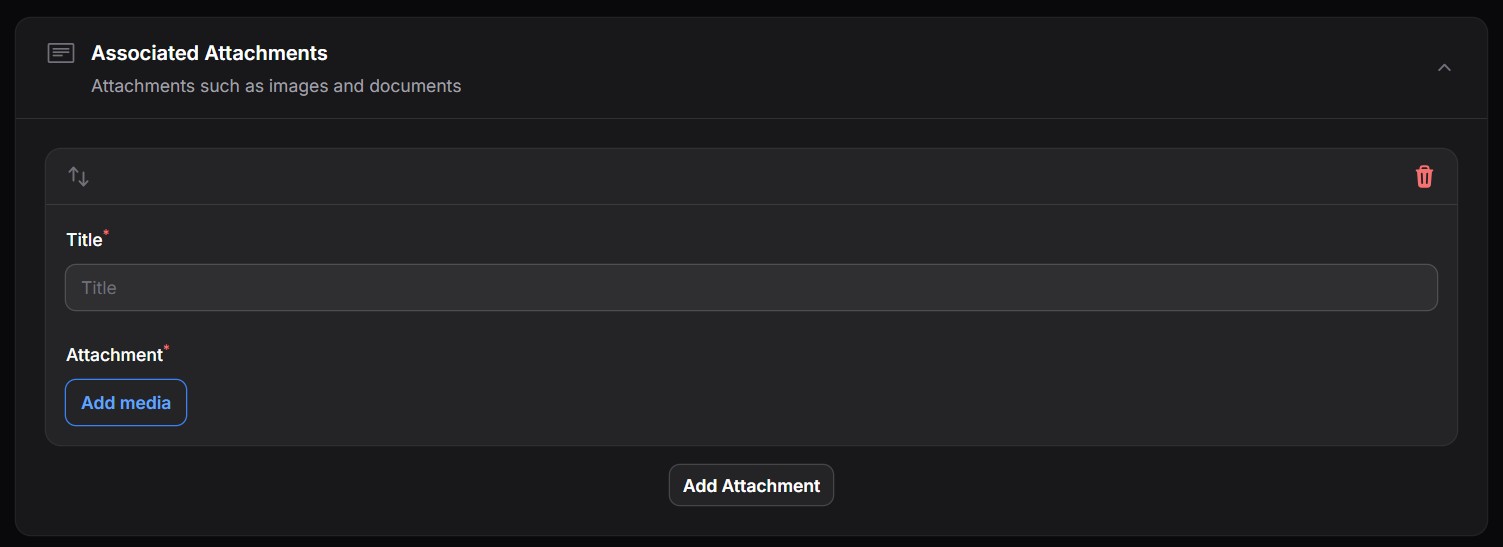
Attachment Fields

Upload any media related to the task (e.g. site photos, signed documents, design files).

5. Location Details #
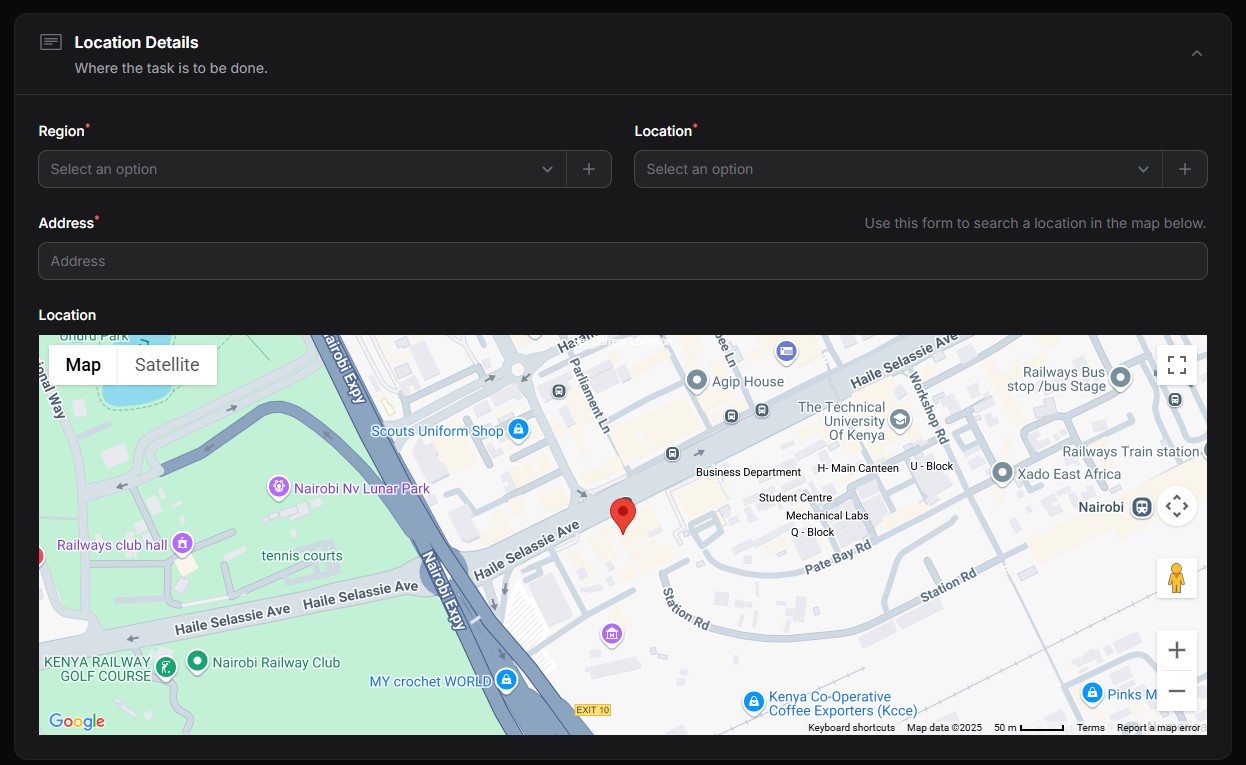
Location Fields

Specify where the task will take place:

  • Region: Broad area or territory.
  • Location: More specific branch or building.
  • Address: Enter manually or use the interactive map to pinpoint the location.

6. Employees #

Assign one or more employees who will handle this task.

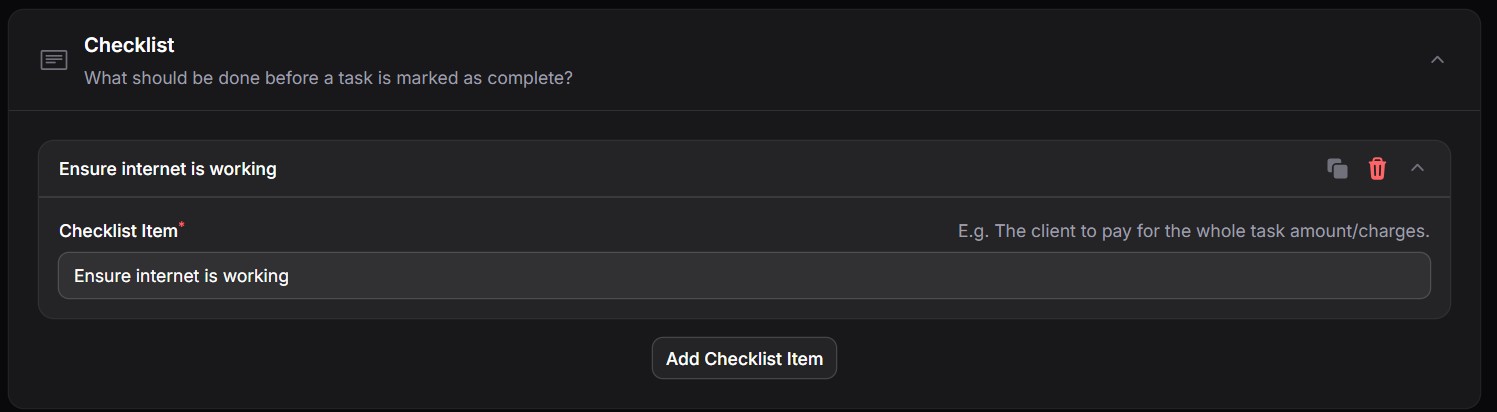
7. Checklist #

Define steps that must be completed before the task is considered done (e.g. customer sign-off, equipment collected, feedback gathered).
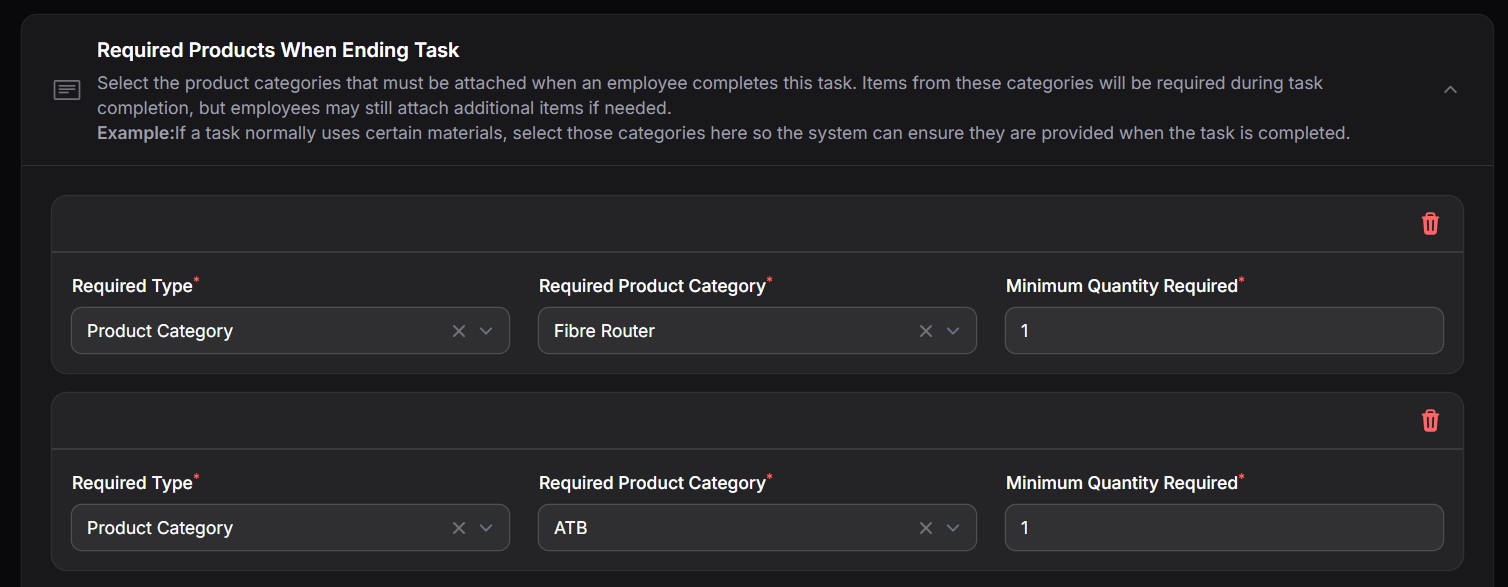
8. Product Item Requirements #

Select the product categories that must be attached when an employee completes a task. Items from these categories will be required during task completion, but employees may still attach additional items if needed.
9. Charges #

Add any costs or billing items associated with the task:

  • Each item includes:
    • Name, Description
    • Quantity and Unit
    • Price Per Unit
    • Commissionable: Whether the item contributes to commissions.
    • Discounts: Apply pre-defined discounts if applicable.

The mandatory charges that must be filled when creating task are managed from the Task Types page. Learn more here.

Submitting the Task #

Once all fields are complete:

  • Click Submit to save the task.
  • The task will now be visible in your task lists (Pending, Completed, etc.) and will notify any assigned employees or marketers.

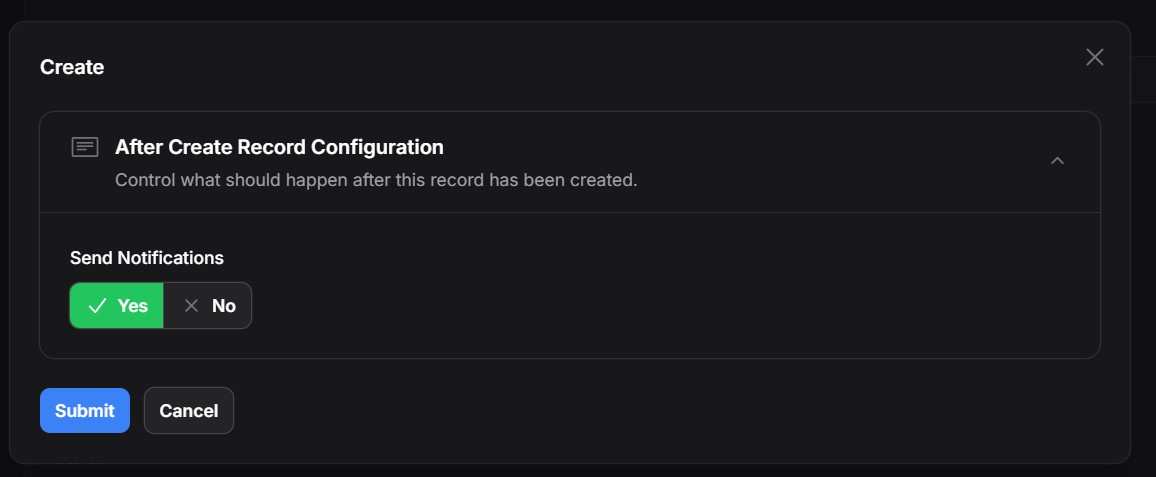
At times, you may be filling already completed tasks and you may not want the notifications to be send. Once you click the Submit button, and provided that you have a user role that enables you to disable notifications, a popup will appear that will request you if you would want the notifications to be sent.
Share This Article :

  • Facebook
  • X
  • LinkedIn
  • Pinterest
Still stuck? How can we help?

How can we help?

How To View Unassigned Tasks
Table of Contents
  • Form Field Details
    • 1. Task Name, Type & Sub Type
    • 2. Marketer Details
    • 3. Client and Account Assignment
    • 4. Associated Attachments
    • 5. Location Details
    • 6. Employees
    • 7. Checklist
    • 8. Product Item Requirements
    • 9. Charges
  • Submitting the Task

123 Fifth Avenue, New York, NY 12004, USA.
+1 123 456 78 90
[email protected]

Copyright © 2025 The Smart DMS Knowledge Base
