
Skip to content
The Smart DMS Knowledge Base
  • Home
  • Documentation
  • Encyclopedia
Contact Us
Contact Us
The Smart DMS Knowledge Base
  • Home
  • Documentation
  • Encyclopedia
Contact Us
Contact Us

Introduction

3
  • Overview of The Smart DMS
  • Getting Started with The Smart DMS
  • Understanding The Smart DMS Architecture

Common

33
  • Bookmarks
    • How To Add & Remove Bookmarks
  • Clients
    • How to Add a Client
  • Communication
    • Communication Overview
    • Settings
      • Communication Settings Overview
      • Email Settings
        • How to Configure Outgoing Email (SMTP) Settings
        • Email Templates
      • SMS Settings
        • SMS Shortcode & API Settings
        • SMS Message Templates
      • WhatsApp Settings
        • Official WhatsApp API Settings
        • WhatsApp Templates
    • Panel Banners
      • Panel Banners
    • WhatsApp
      • WhatsApp Overview
      • How to Setup a WhatsApp Web Session
      • How to Subscribe to System Updates in WhatsApp Groups
    • Web Push Subscribers
      • Web Push Subscribers Overview
  • Content Management
    • How To Add Content Such As FAQs & Guides
    • Content Management Overview in The Smart DMS
    • Categories
      • Managing Content Categories
    • Tags
      • Managing Content Tags
  • Logs
    • Tracking Actions: Understanding Logs in The Smart DMS
  • Notifications
    • How to Enable/Disable Notifications
  • Roles & Permissions
    • User Roles & Permissions Overview
    • Understanding Roles & Permissions Across Central and Tenant Panels
    • How To Create User Roles
  • Search
    • Using the Global Search Bar in The Smart DMS
  • Settings
    • Authentication
      • Authentication Settings
    • General
      • General Settings Overview
      • Do I Use Tenant-Specific or Central Settings
  • Users
    • How to Register a User
    • How To Update a User & Assign Roles
    • How To Bulk Assign User Roles
    • How To Update Your Profile
    • Biometrics
      • digitalPersona
        • How to Setup digitalPersona U.are.U 4500 Fingerprint Reader

Central

13
  • Main
    • Dashboard
    • Clients
      • Central Clients
    • Tasks
      • Central Tasks
    • Tenants
      • Tenant Overview — What Is a Tenant in The Smart DMS?
      • How To Create a Tenant
      • Updating a Tenant and Managing Assigned Users
      • Customizing Tenant Labels
    • Payroll
      • Payroll Overview
      • Commissions
      • How to View Your Account Balance
    • Policies
      • Managing Policy Categories
      • Managing Company Policies & Training Manuals in The Smart DMS
    • Subscription
      • How To Renew Your Smart DMS Subscription

Tenant

34
  • How To Access Different Tenants
  • Tenant Dashboard
  • Attendance
    • Attendances
    • Devices
      • Supported Biometric Devices
    • Settings
      • Attendance Settings
  • Ecommerce
    • Products
      • How To Create Simple Products
      • How to Create Cable Products in Bulk
      • How To Create Variable Products In Bulk
    • Requisitions
      • How To Request Store Items
      • How To Approve Requisition Items
      • How To View Inventory Used in a Task
  • Human Resource
    • Employees
      • How To Update Employees
  • Marketing
    • Marketers
      • How to Create a Marketer
    • Commissions
      • Commissions Overview
      • Uncommissioned Tasks
  • Payroll
    • Advance
      • How Employees Can Request a Salary Advance
      • How To Approve A Salary Advance Request
    • Deductions
      • Employee Deductions
  • Tasks
    • Task Types
      • Task Types Overview
      • How To Create Task Types
    • Task Management
      • Task Statuses Overview
      • How To Create Tasks
      • How To View Unassigned Tasks
      • How To Start a Task
      • How To End a Task
      • How Employees Can Mark a Task as Bounced
      • How To Mark Tasks as Bounced in Bulk
      • How To View Inventory Used in a Task
      • How To Mark a Task as Complete / Done
    • Settings
      • Task Settings
  • Workflows
    • How To Approve Or Decline Transition Requests in Bulk
    • What are Workflows and Transitions?
    • How to Create a Workflow
    • How to Approve or Decline a Transition Request
  • Home
  • Documentation
  • Tenant
  • Payroll
  • Deductions
  • Employee Deductions
View Categories

Employee Deductions

1 min read

The DMS supports flexible employee deductions that can be applied during payroll processing. Deductions allow you to subtract statutory contributions, taxes, or internal charges from an employee’s gross pay in a controlled and auditable manner.

The deduction workflow is done in two main steps:

  1. Define deduction types
  2. Assign deduction values to employees

Step 1: Define Deduction Types #

Before deductions can be applied to employees, they must first be defined in the system.

Go to: Payroll → Deductions
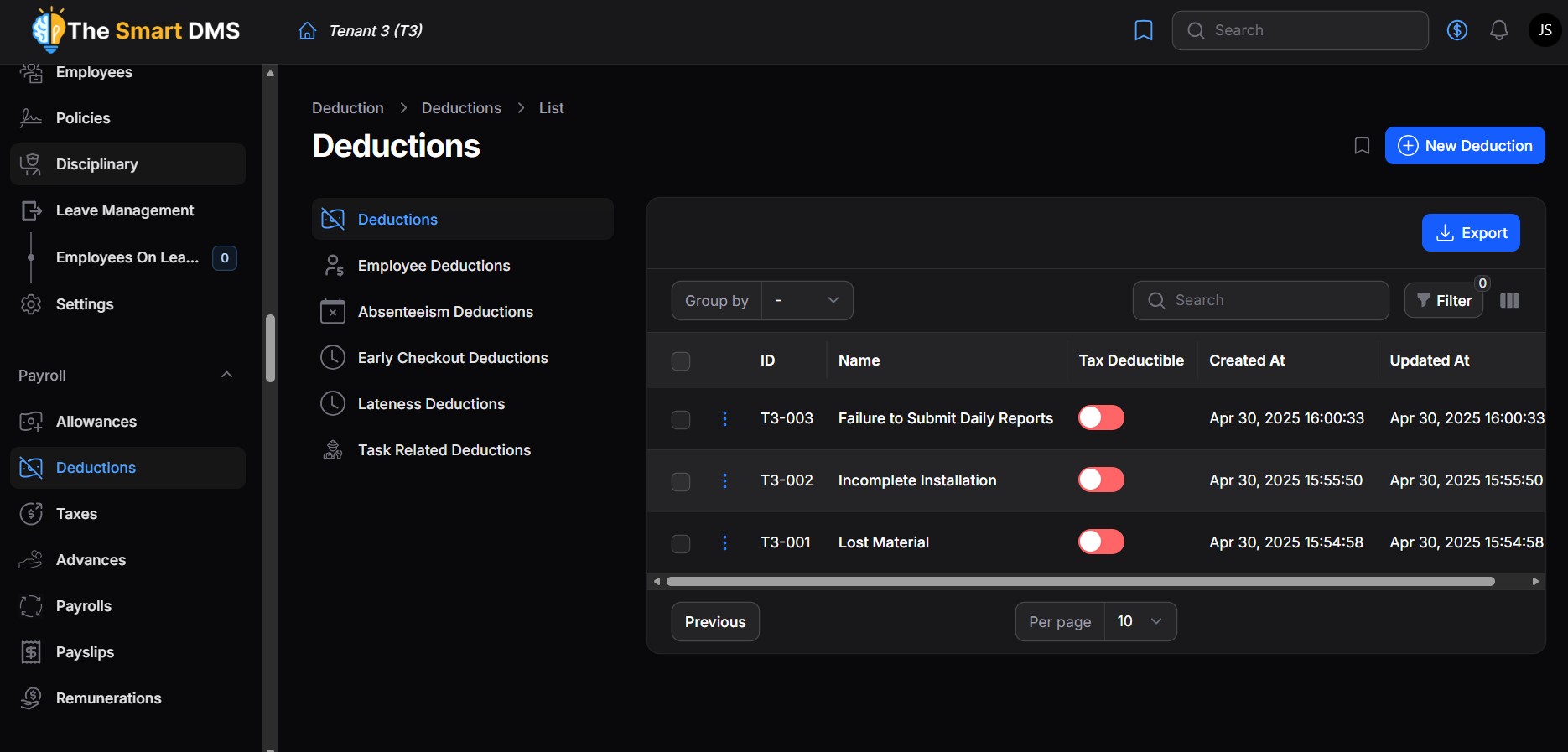
Each deduction represents a deduction category that can later be assigned to one or more employees.

Common Deduction Examples (Kenya) #

You can define deductions such as:

  • Pay As You Earn (PAYE) – Income tax deducted based on taxable pay
  • National Social Security Fund (NSSF) – Statutory pension contribution
  • Social Health Authority (SHA) – Health contribution (formerly NHIF)
  • Housing Levy – Statutory housing contribution
  • Lost or Damaged Items

Deduction Fields Explained #
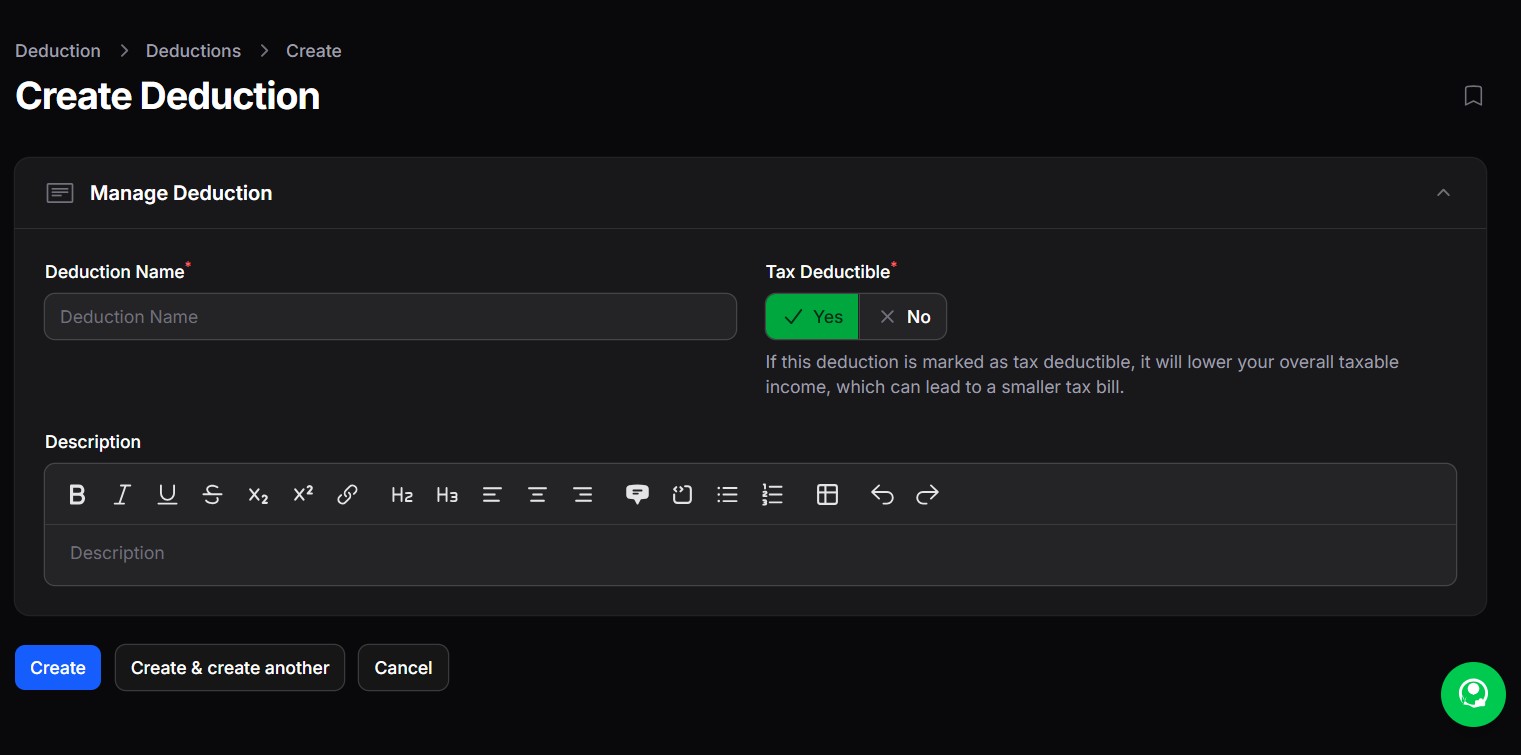
  • Deduction Name
    The name of the deduction (e.g. PAYE, NSSF, Lost Items).
  • Tax Deductible
    Indicates whether this deduction reduces the employee’s taxable income.
    • If enabled, the deduction is applied before tax calculation.
    • Common examples: Pension contributions, NSSF (depending on rules).
  • Description
    Optional explanation of what the deduction is used for or how it is applied.

Once saved, the deduction becomes available for assignment to employees.

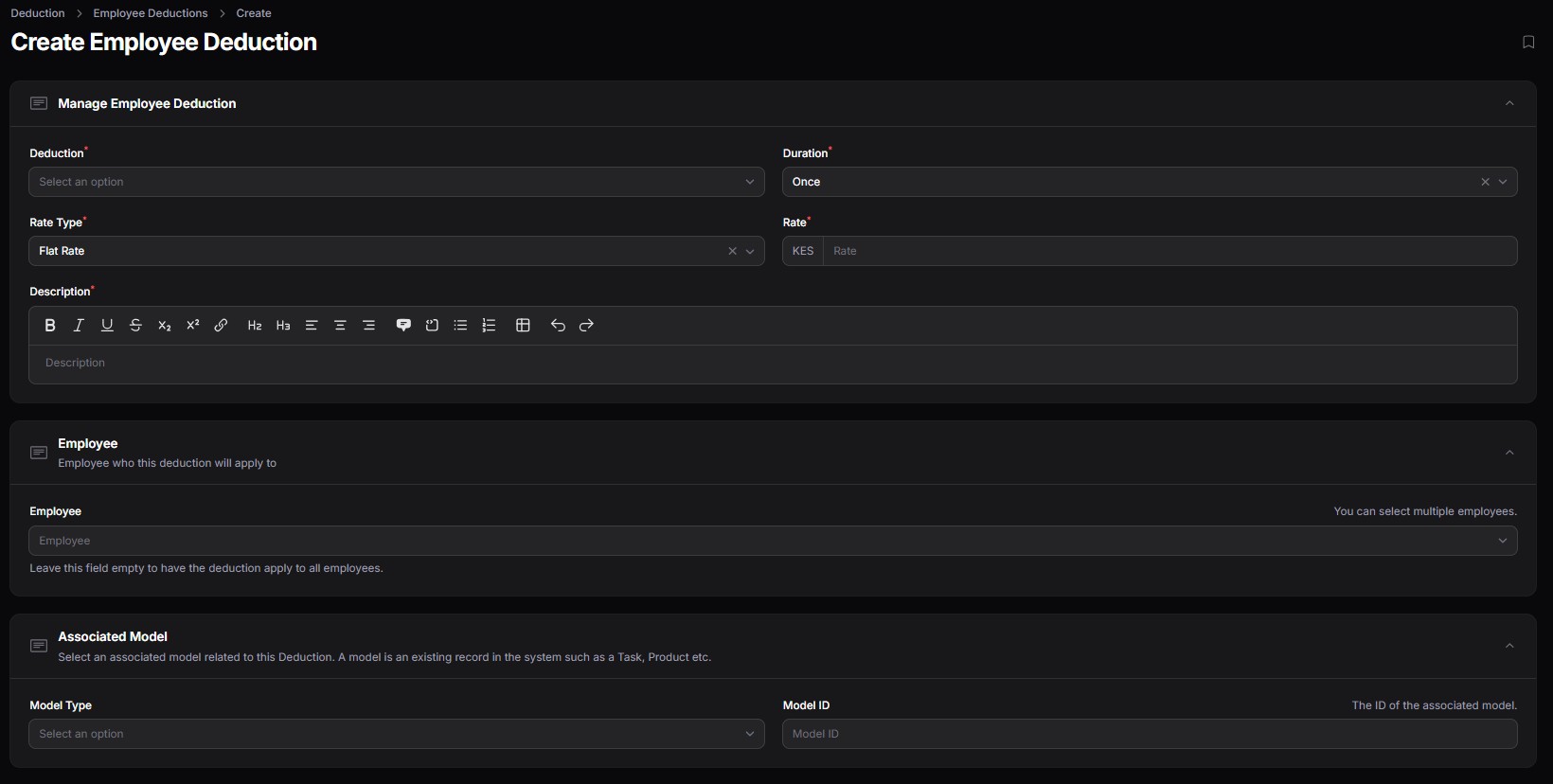
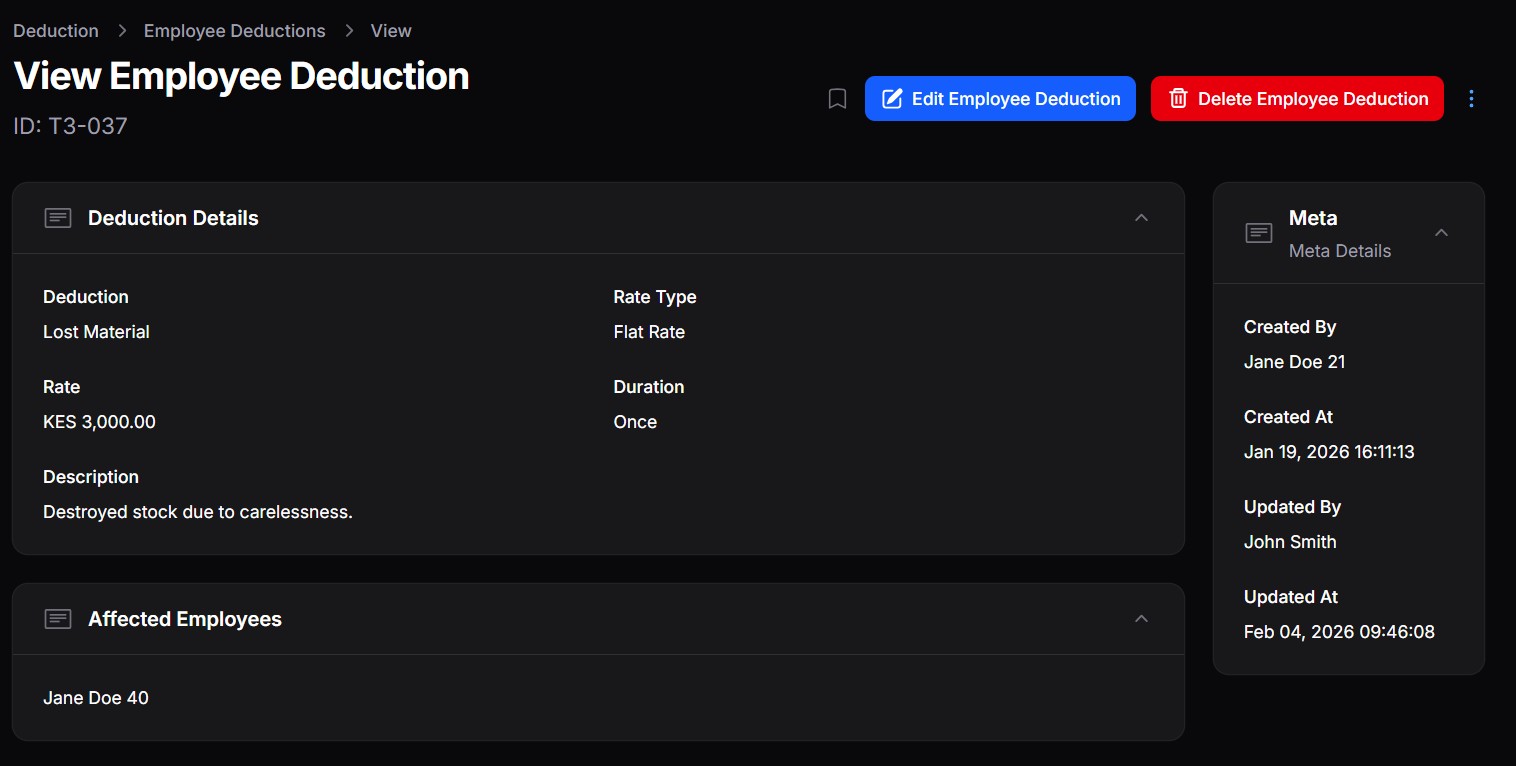
Step 2: Assign Deductions to Employees #

After defining deductions, you can assign them to specific employees with custom values.

Go to: Payroll → Employee Deductions
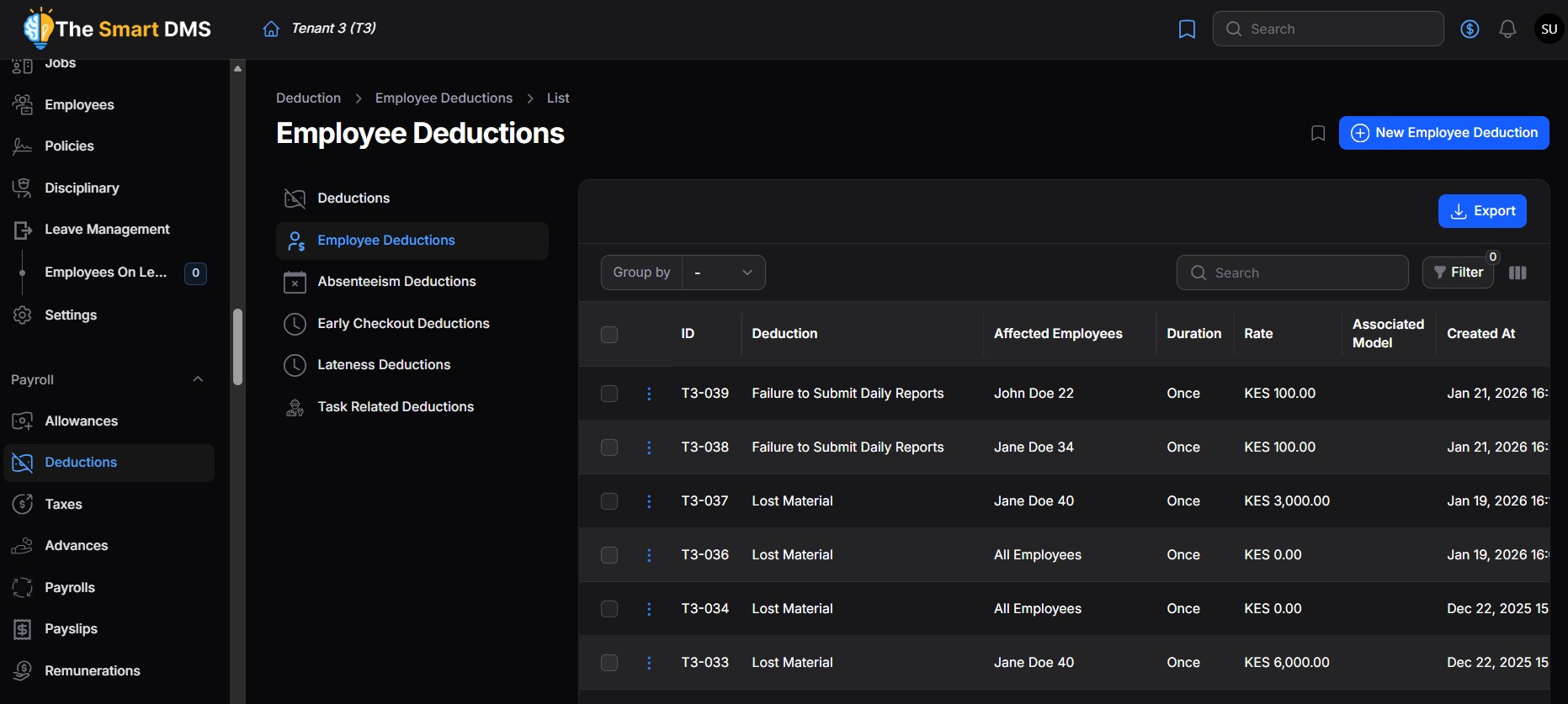
Each record here links:

  • An employee
  • A deduction
  • A calculation rule

Employee Deduction Configuration #

When assigning a deduction to an employee, you define how it should be calculated:

Rate Type #

Determines how the deduction amount is calculated:

  • Flat Rate – A fixed monetary amount (e.g. KES 2,000)
  • Percentage – A percentage of salary or taxable income (e.g. 6%)

Rate #

The actual value:

  • For flat rate: currency amount
  • For percentage: percentage value

Duration #

Controls how long the deduction applies:

  • One-time
  • Recurring
  • Fixed period (depending on configuration)

Model Type & Scope #

Defines what the deduction is linked to (e.g. a product that is lost).

Description #

Optional notes specific to this employee’s deduction (e.g. Loan repayment for January–June).

Payroll Impact #

  • Employee deductions are automatically applied during payroll processing
  • Tax-deductible deductions reduce taxable income before PAYE is calculated
  • Non-tax-deductible deductions are applied after tax
  • All deductions are tracked, auditable, and visible in payroll records

Access Control & Visibility #

  • Users with payroll permissions can view and manage all employee deductions
  • Employees may only see deductions assigned to them (depending on role permissions)

Share This Article :

  • Facebook
  • X
  • LinkedIn
  • Pinterest
Still stuck? How can we help?

How can we help?

Employee DeductionsEmployee Deductions
Table of Contents
  • Step 1: Define Deduction Types
    • Common Deduction Examples (Kenya)
    • Deduction Fields Explained
  • Step 2: Assign Deductions to Employees
    • Employee Deduction Configuration
      • Rate Type
      • Rate
      • Duration
      • Model Type & Scope
      • Description
  • Payroll Impact
  • Access Control & Visibility

123 Fifth Avenue, New York, NY 12004, USA.
+1 123 456 78 90
[email protected]

Copyright © 2026 The Smart DMS Knowledge Base