
Skip to content
The Smart DMS Knowledge Base
  • Home
  • Documentation
  • Encyclopedia
Contact Us
Contact Us
The Smart DMS Knowledge Base
  • Home
  • Documentation
  • Encyclopedia
Contact Us
Contact Us

Introduction

3
  • Overview of The Smart DMS
  • Getting Started with The Smart DMS
  • Understanding The Smart DMS Architecture

Common

33
  • Bookmarks
    • How To Add & Remove Bookmarks
  • Clients
    • How to Add a Client
  • Communication
    • Communication Overview
    • Settings
      • Communication Settings Overview
      • Email Settings
        • How to Configure Outgoing Email (SMTP) Settings
        • Email Templates
      • SMS Settings
        • SMS Shortcode & API Settings
        • SMS Message Templates
      • WhatsApp Settings
        • Official WhatsApp API Settings
        • WhatsApp Templates
    • Panel Banners
      • Panel Banners
    • WhatsApp
      • WhatsApp Overview
      • How to Setup a WhatsApp Web Session
      • How to Subscribe to System Updates in WhatsApp Groups
    • Web Push Subscribers
      • Web Push Subscribers Overview
  • Content Management
    • How To Add Content Such As FAQs & Guides
    • Content Management Overview in The Smart DMS
    • Categories
      • Managing Content Categories
    • Tags
      • Managing Content Tags
  • Logs
    • Tracking Actions: Understanding Logs in The Smart DMS
  • Notifications
    • How to Enable/Disable Notifications
  • Roles & Permissions
    • User Roles & Permissions Overview
    • Understanding Roles & Permissions Across Central and Tenant Panels
    • How To Create User Roles
  • Search
    • Using the Global Search Bar in The Smart DMS
  • Settings
    • Authentication
      • Authentication Settings
    • General
      • General Settings Overview
      • Do I Use Tenant-Specific or Central Settings
  • Users
    • How to Register a User
    • How To Update a User & Assign Roles
    • How To Bulk Assign User Roles
    • How To Update Your Profile
    • Biometrics
      • digitalPersona
        • How to Setup digitalPersona U.are.U 4500 Fingerprint Reader

Central

13
  • Main
    • Dashboard
    • Clients
      • Central Clients
    • Tasks
      • Central Tasks
    • Tenants
      • Tenant Overview — What Is a Tenant in The Smart DMS?
      • How To Create a Tenant
      • Updating a Tenant and Managing Assigned Users
      • Customizing Tenant Labels
    • Payroll
      • Payroll Overview
      • Commissions
      • How to View Your Account Balance
    • Policies
      • Managing Policy Categories
      • Managing Company Policies & Training Manuals in The Smart DMS
    • Subscription
      • How To Renew Your Smart DMS Subscription

Tenant

34
  • How To Access Different Tenants
  • Tenant Dashboard
  • Attendance
    • Attendances
    • Devices
      • Supported Biometric Devices
    • Settings
      • Attendance Settings
  • Ecommerce
    • Products
      • How To Create Simple Products
      • How to Create Cable Products in Bulk
      • How To Create Variable Products In Bulk
    • Requisitions
      • How To Request Store Items
      • How To Approve Requisition Items
      • How To View Inventory Used in a Task
  • Human Resource
    • Employees
      • How To Update Employees
  • Marketing
    • Marketers
      • How to Create a Marketer
    • Commissions
      • Commissions Overview
      • Uncommissioned Tasks
  • Payroll
    • Advance
      • How Employees Can Request a Salary Advance
      • How To Approve A Salary Advance Request
    • Deductions
      • Employee Deductions
  • Tasks
    • Task Types
      • Task Types Overview
      • How To Create Task Types
    • Task Management
      • Task Statuses Overview
      • How To Create Tasks
      • How To View Unassigned Tasks
      • How To Start a Task
      • How To End a Task
      • How Employees Can Mark a Task as Bounced
      • How To Mark Tasks as Bounced in Bulk
      • How To View Inventory Used in a Task
      • How To Mark a Task as Complete / Done
    • Settings
      • Task Settings
  • Workflows
    • How To Approve Or Decline Transition Requests in Bulk
    • What are Workflows and Transitions?
    • How to Create a Workflow
    • How to Approve or Decline a Transition Request
  • Home
  • Documentation
  • Common
  • Users
  • How To Update Your Profile
View Categories

How To Update Your Profile

2 min read

You can easily update your personal details, contact info, and password from your profile page.

  1. Click your avatar icon at the top-right corner of the screen.
  2. Click “Profile” from the dropdown menu.
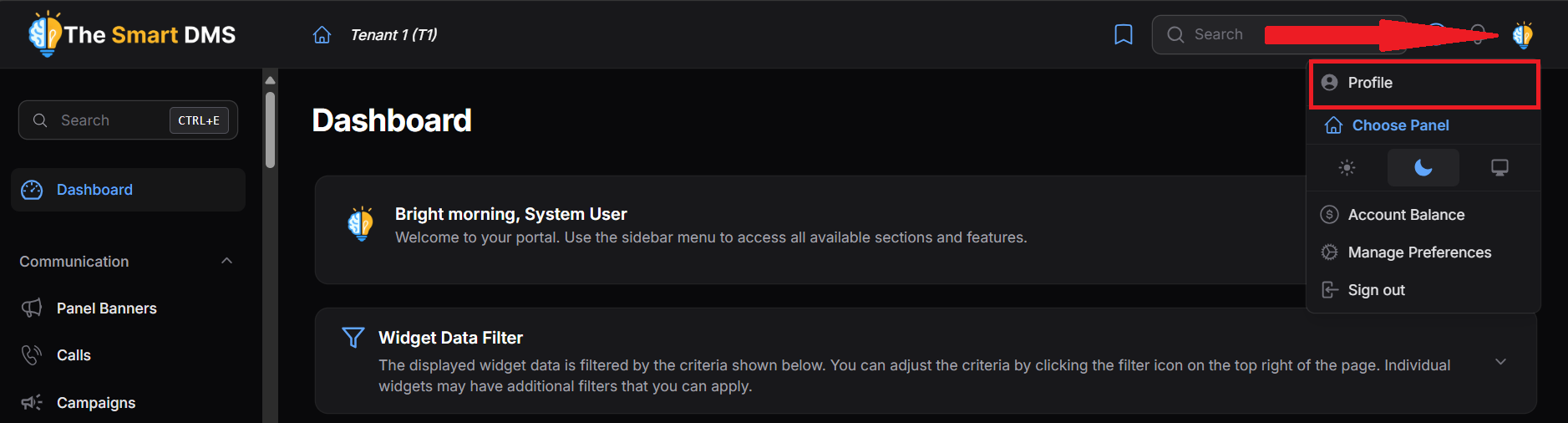
  3. Clicking on the link will redirect you to the profile page.
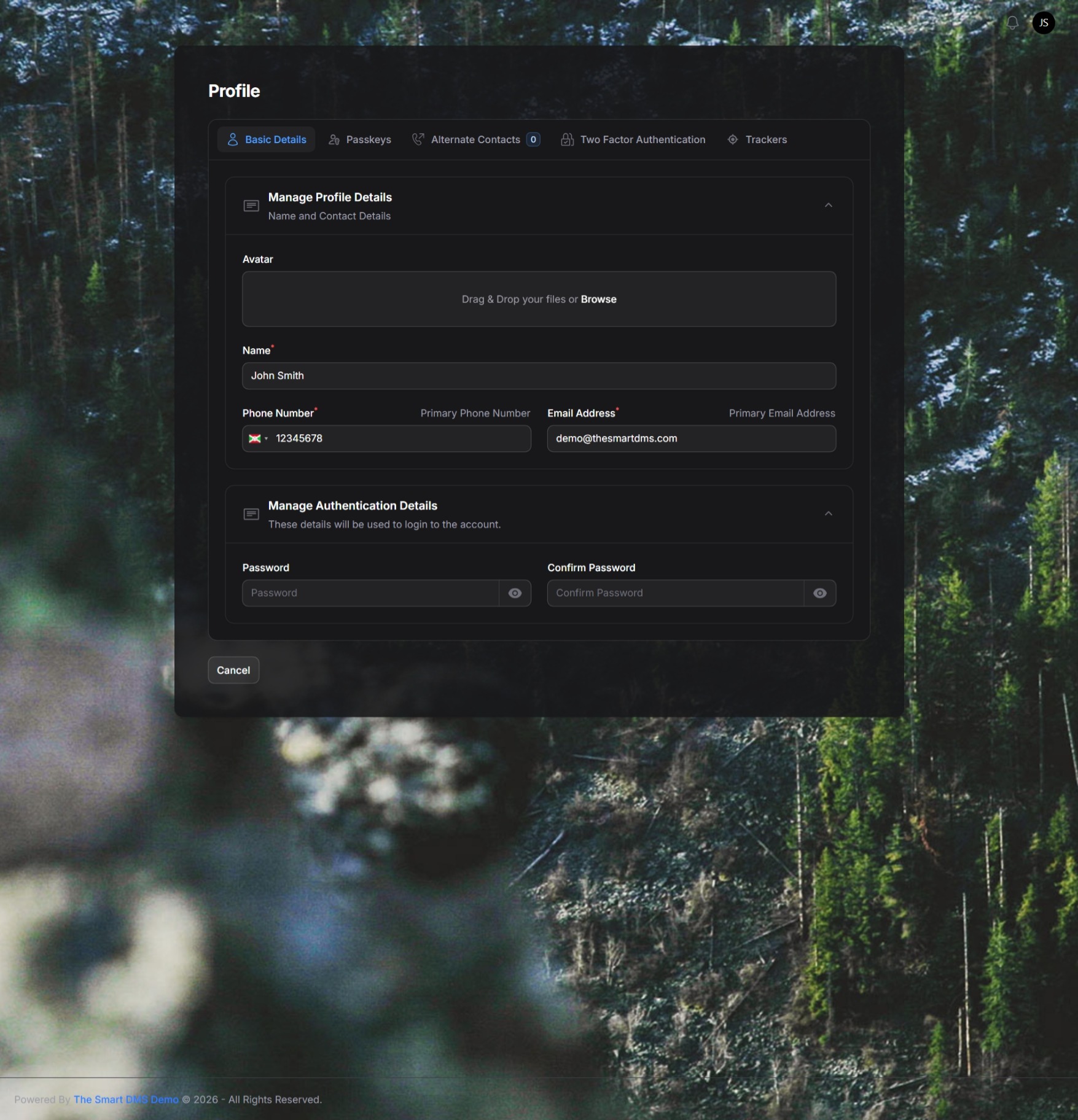
Basic Details Tab #

In the Basic Details tab, you can update your:

  • Avatar
  • Name
  • Primary Phone Number
  • Primary Email Address

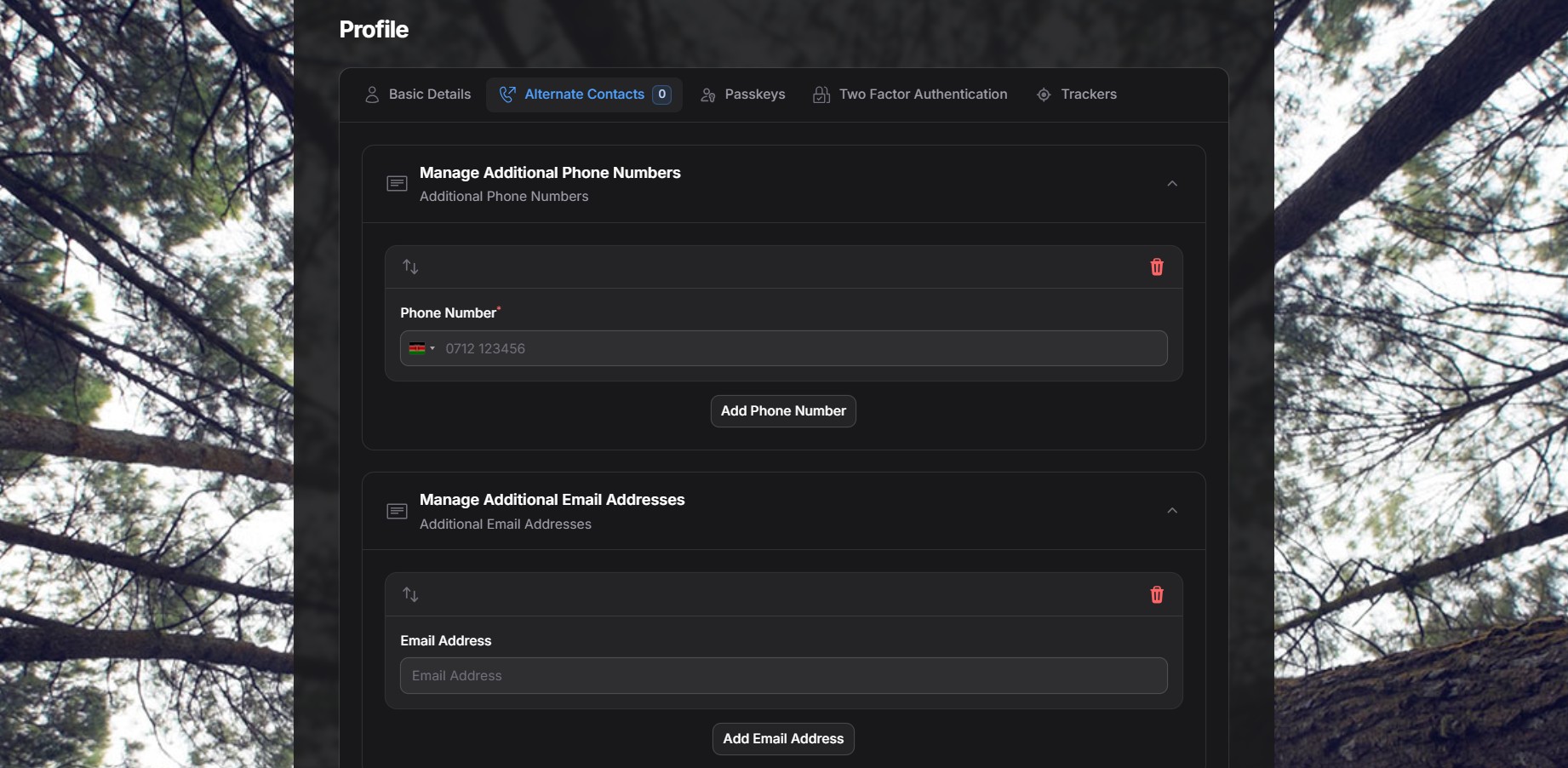
Alternate Contacts Tab #

In the Alternate Contacts tab, you can add additional phone numbers or email addresses.
Passkeys Tab #
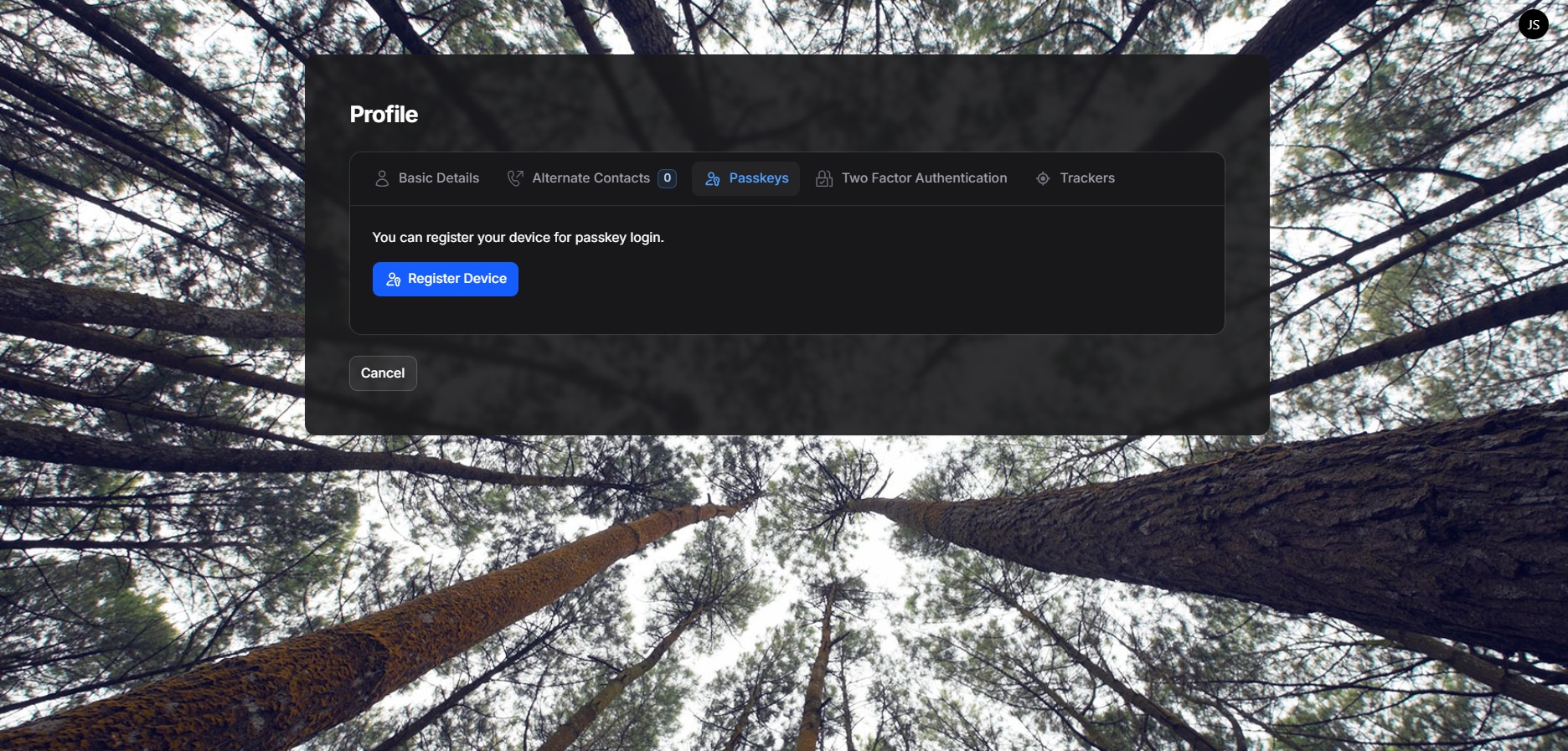
In the Passkeys tab, you can securely register your device for passwordless login using modern authentication methods such as Fingerprint, Face ID, or your device’s built-in security key.

This feature allows you to sign in without entering a password, relying instead on WebAuthn-supported credentials that are tied directly to your device and verified by your browser.

How it works #

  • When you click Register Device, the system checks whether your browser supports WebAuthn (the standard behind passkeys).
  • If supported, your browser will prompt you to authenticate using an available method on your device, such as:
    • Fingerprint
    • Face ID
    • Windows Hello
    • Device PIN or hardware security key
  • Once verified, your device is securely registered as a passkey for your account.

What to expect #

  • No passwords involved: Your biometric or device credential never leaves your device.
  • Browser-dependent: Passkeys only work on browsers that support WebAuthn.
  • Device-specific: Each device must be registered separately.
  • Instant activation: After successful registration, the page reloads and the passkey becomes available immediately.

If registration fails #

  • Ensure you are using a modern browser (Chrome, Edge, Safari, or Firefox with WebAuthn support).
  • Confirm that your device has biometric authentication or a supported security mechanism enabled.
  • If your browser does not support WebAuthn, you will be notified before registration begins.

Two Factor Authentication Tab #
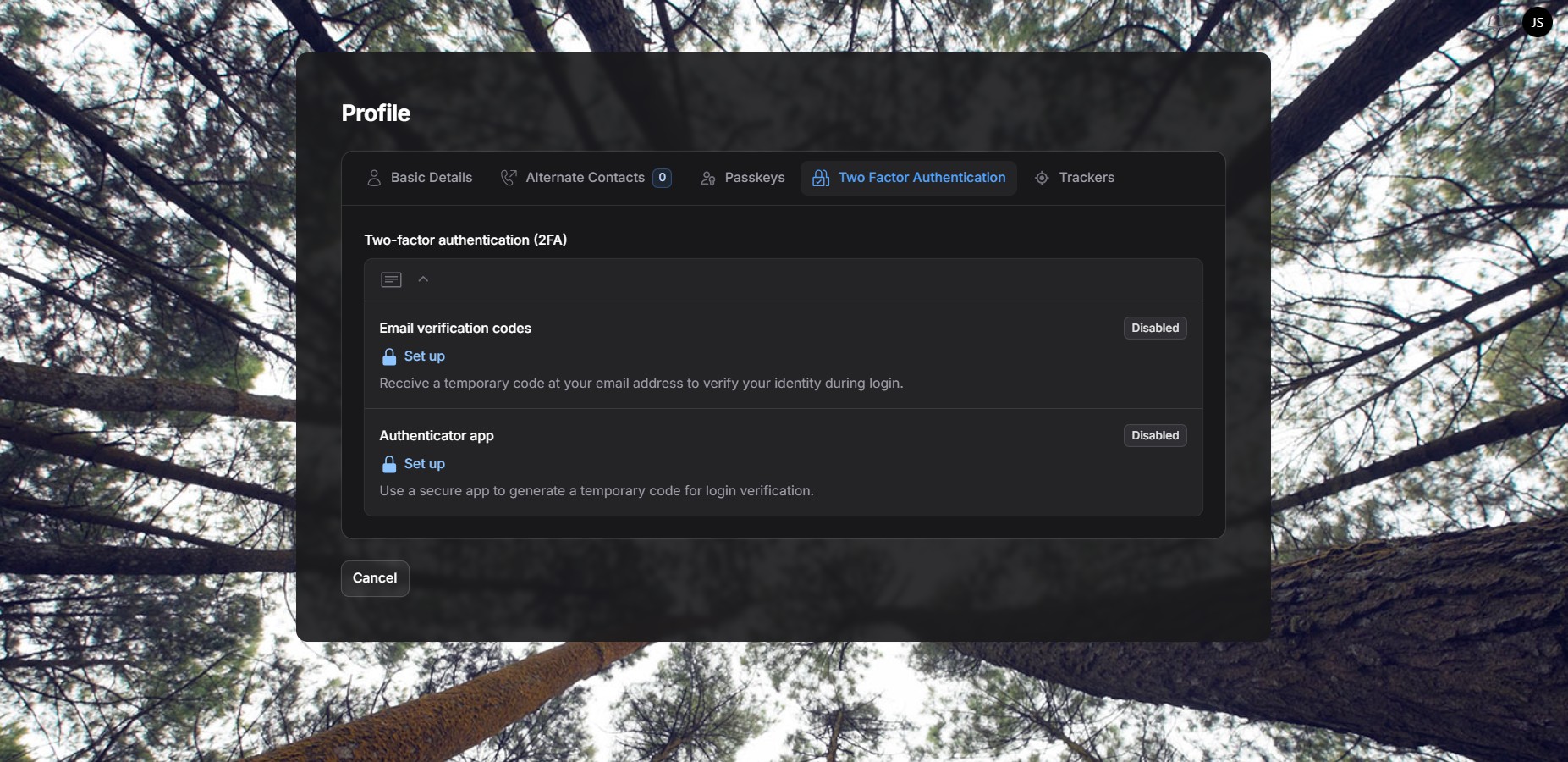
In the Two-Factor Authentication (2FA) tab, you can add an extra layer of security to your account by requiring a one-time verification code during login or when performing sensitive actions.

Two-factor authentication helps protect your account even if your password is compromised. You can enable one or both of the available 2FA methods depending on your preference.

Available 2FA methods #

1. Email verification codes #

This method sends a temporary 6-digit code to your registered email address.

How it works

  • Click Set up under Email verification codes.
  • A 6-digit code is sent to your email address.
  • Enter the code in the verification prompt to complete setup.
  • Once enabled, you’ll be asked for an email code each time you sign in or perform sensitive actions.

Notes

  • Codes are time-limited for security.
  • If you don’t receive the code, you can use Send a new code by email.
  • This option is convenient and does not require any additional apps.

2. Authenticator app #

This method uses a dedicated authenticator app to generate time-based codes.

How it works

  • Click Set up under Authenticator app.
  • Install an authenticator app such as Google Authenticator or any compatible app on your phone.
  • Scan the displayed QR code with your authenticator app
    (or enter the provided setup key manually if scanning is not possible).
  • Enter the 6-digit code generated by the app to confirm setup.
  • After activation, the app will generate a new code every few seconds.

Notes

  • This method does not rely on email delivery.
  • You must keep access to your authenticator app to sign in.
  • Each login or sensitive action will require the current 6-digit code from the app.

Status indicators #

  • Disabled means the 2FA method is not yet active.
  • Once enabled, the method becomes part of your login and verification flow.

Recommended usage #

  • Enable at least one 2FA method for improved security.
  • Using an authenticator app is recommended for higher-security accounts.
  • You can combine 2FA with passkeys and other authentication methods for maximum protection.

Two-factor authentication significantly reduces the risk of unauthorized access and is strongly encouraged for all users.

Share This Article :

  • Facebook
  • X
  • LinkedIn
  • Pinterest
Still stuck? How can we help?

How can we help?

How To Bulk Assign User RolesHow to Register a User
Table of Contents
  • Basic Details Tab
  • Alternate Contacts Tab
  • Passkeys Tab
    • How it works
    • What to expect
    • If registration fails
  • Two Factor Authentication Tab
  • Available 2FA methods
    • 1. Email verification codes
    • 2. Authenticator app
    • Status indicators
    • Recommended usage

123 Fifth Avenue, New York, NY 12004, USA.
+1 123 456 78 90
[email protected]

Copyright © 2026 The Smart DMS Knowledge Base