
Skip to content
The Smart DMS Knowledge Base
  • Home
  • Documentation
  • Encyclopedia
Contact Us
Contact Us
The Smart DMS Knowledge Base
  • Home
  • Documentation
  • Encyclopedia
Contact Us
Contact Us

Introduction

3
  • Overview of The Smart DMS
  • Getting Started with The Smart DMS
  • Understanding The Smart DMS Architecture

Common

31
  • Bookmarks
    • How To Add & Remove Bookmarks
  • Communication
    • Communication Overview
    • Settings
      • Communication Settings Overview
      • Email Settings
        • How to Configure Outgoing Email (SMTP) Settings
        • Email Templates
      • SMS Settings
        • SMS Shortcode & API Settings
        • SMS Message Templates
      • WhatsApp Settings
        • Official WhatsApp API Settings
        • WhatsApp Templates
    • Panel Banners
      • Panel Banners
    • WhatsApp
      • WhatsApp Overview
      • How to Setup a WhatsApp Web Session
      • How to Subscribe to System Updates in WhatsApp Groups
    • Web Push Subscribers
      • Web Push Subscribers Overview
  • Content Management
    • How To Add Content Such As FAQs & Guides
    • Content Management Overview in The Smart DMS
    • Categories
      • Managing Content Categories
    • Tags
      • Managing Content Tags
  • Logs
    • Tracking Actions: Understanding Logs in The Smart DMS
  • Notifications
    • How to Enable/Disable Notifications
  • Roles & Permissions
    • User Roles & Permissions Overview
    • Understanding Roles & Permissions Across Central and Tenant Panels
    • How To Create User Roles
  • Search
    • Using the Global Search Bar in The Smart DMS
  • Settings
    • Authentication
      • Authentication Settings
    • General
      • General Settings Overview
      • Do I Use Tenant-Specific or Central Settings
  • Users
    • How to Register a User
    • How To Update a User & Assign Roles
    • How To Bulk Assign User Roles
    • How To Update Your Profile

Central

13
  • Main
    • Dashboard
    • Clients
      • Central Clients
    • Tasks
      • Central Tasks
    • Tenants
      • Tenant Overview — What Is a Tenant in The Smart DMS?
      • How To Create a Tenant
      • Updating a Tenant and Managing Assigned Users
      • Customizing Tenant Labels
    • Payroll
      • Payroll Overview
      • Commissions
      • How to View Your Account Balance
    • Policies
      • Managing Policy Categories
      • Managing Company Policies & Training Manuals in The Smart DMS
    • Subscription
      • How To Renew Your Smart DMS Subscription

Tenant

20
  • How To Access Different Tenants
  • Tenant Dashboard
  • Ecommerce
    • Products
      • How To Create Simple Products
      • How to Create Cable Products in Bulk
      • How To Create Variable Products In Bulk
    • Requisitions
      • How To Request Store Items
      • How To Approve Requisition Items
  • Tasks
    • Task Types
      • Task Types Overview
      • How To Create Task Types
    • Task Management
      • Task Statuses Overview
      • How To Create Tasks
      • How To View Unassigned Tasks
      • How To Mark a Task as Complete / Done
      • How To Start a Task
      • How To End a Task
    • Settings
      • Task Settings
  • Human Resource
    • Employees
      • How To Update Employees
  • Marketing
    • Marketers
      • How to Create a Marketer
    • Commissions
      • Commissions Overview
      • Uncommissioned Tasks
  • Home
  • Documentation
  • Common
  • Communication
  • WhatsApp
  • How to Setup a WhatsApp Web Session
View Categories

How to Setup a WhatsApp Web Session

< 1 min read

Note: Before connecting your WhatsApp account to the DMS, make sure you’ve already linked and actively used it with WhatsApp Web for at least a few days. Skipping this step may cause frequent or random disconnections.

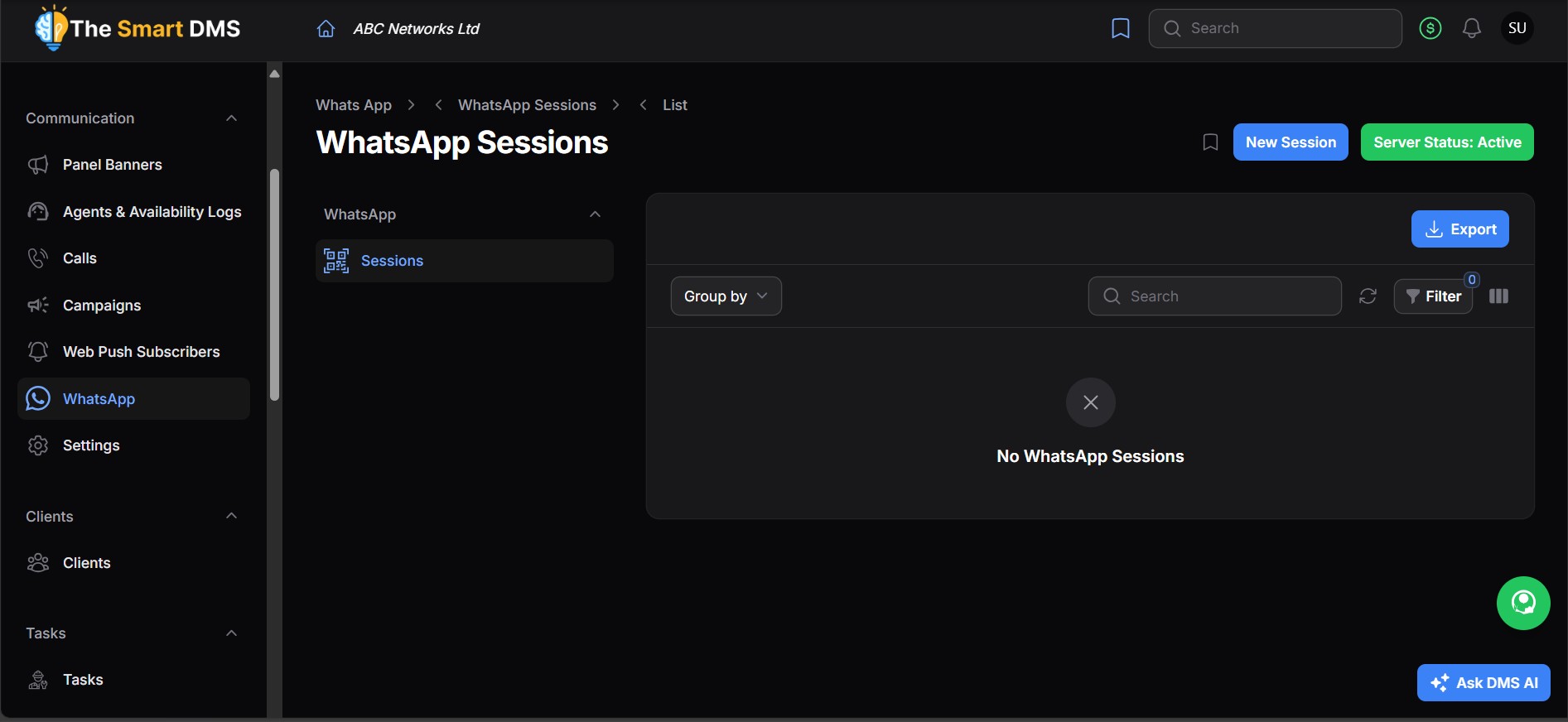
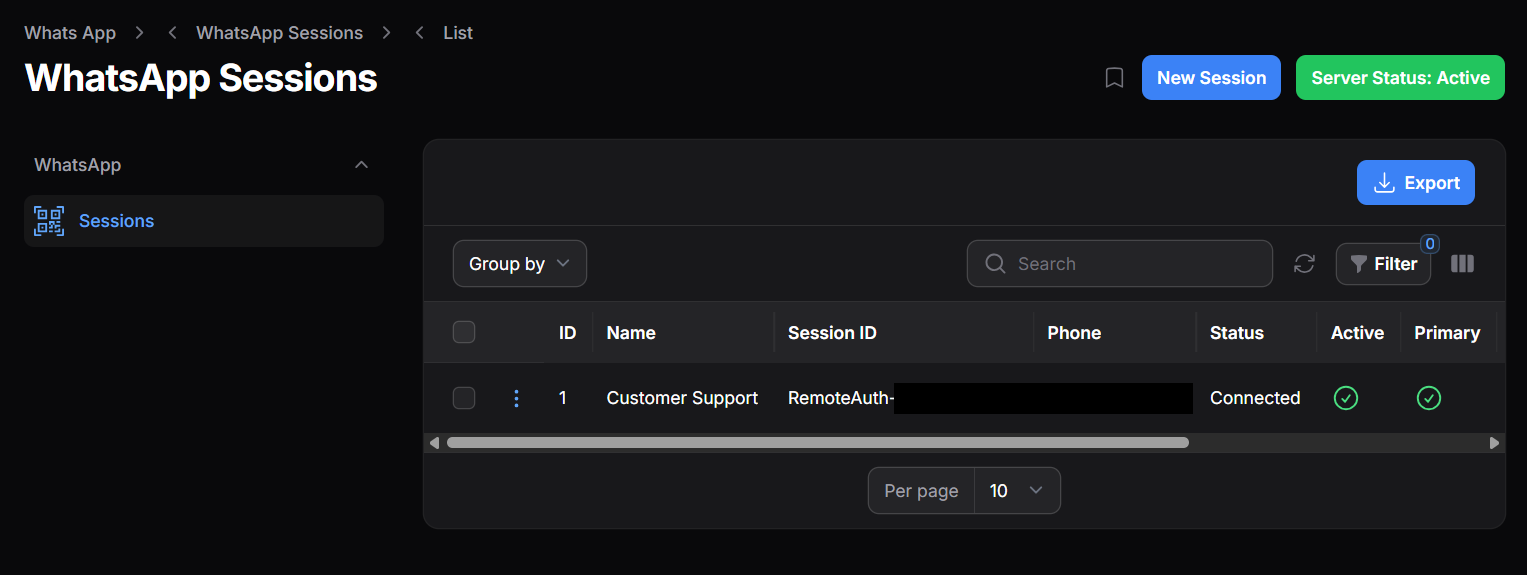
To setup a new WhatsApp Web Session, go to Main Central Panel > WhatsApp > Sessions and click on New Session.
Such a popup / modal will appear, where you should fill a easy to remember name for this session, and its phone number.
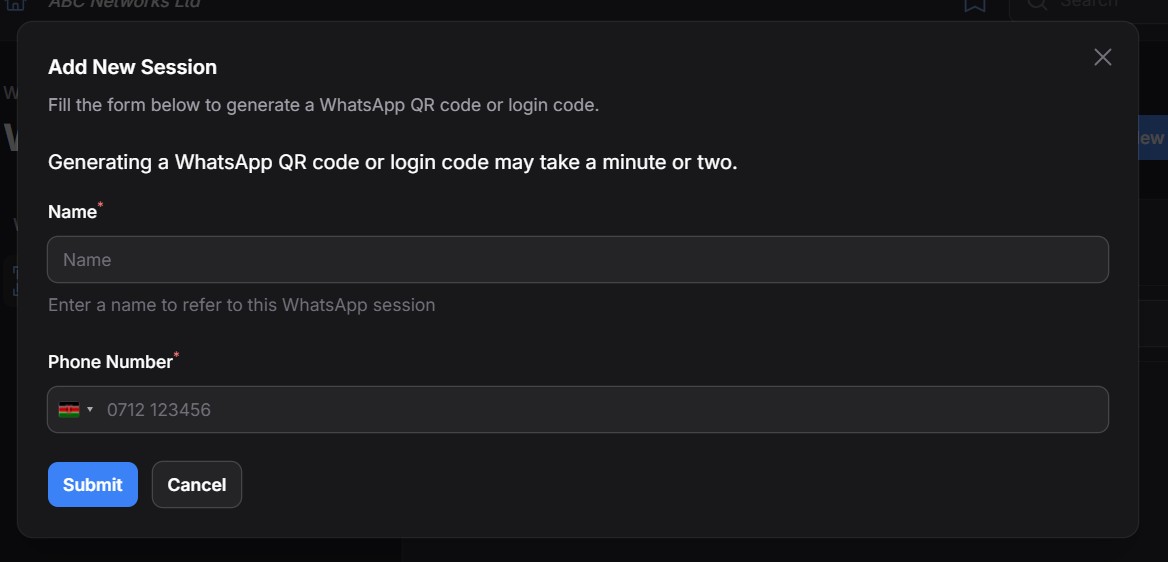
Then click on submit.

A QR code and linking code will be generated. You can either scan the QR code using your phone, or enter the code on your WhatsApp.
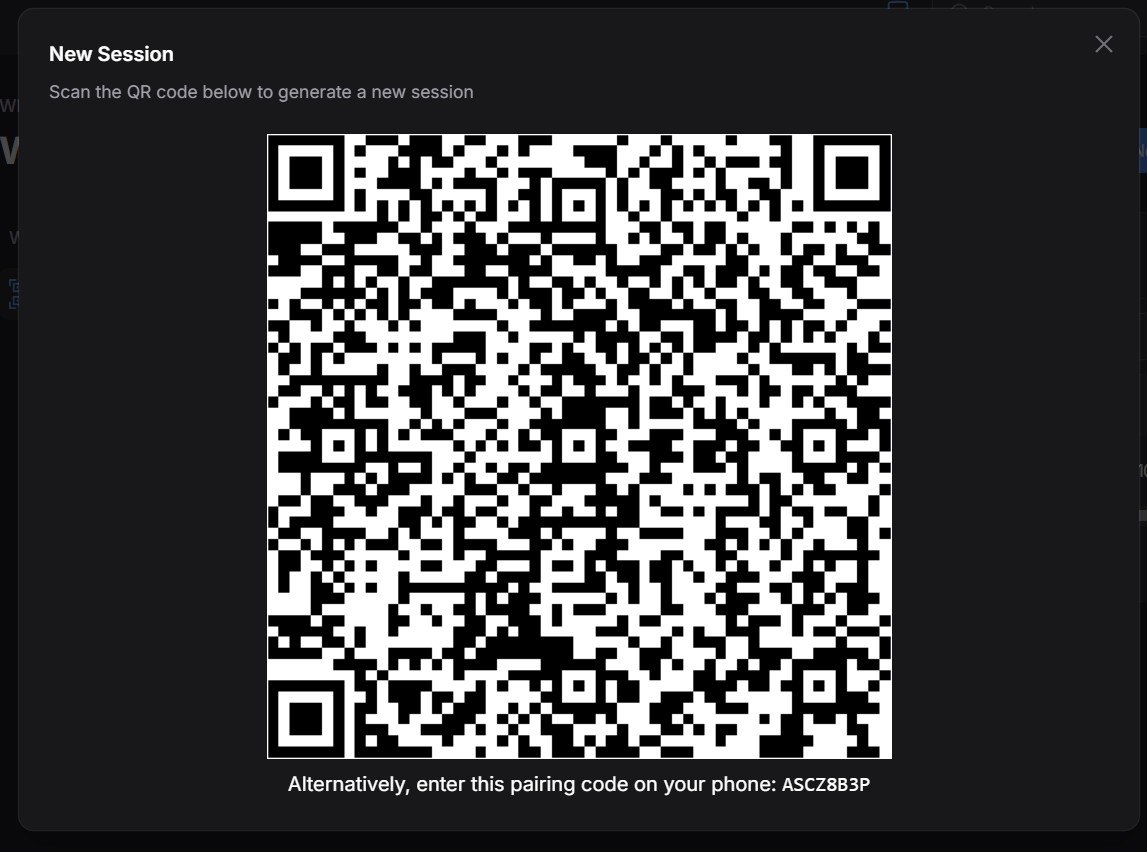
Once connected, the modal will automatically close and the session will show as connected & active.
Share This Article :

  • Facebook
  • X
  • LinkedIn
  • Pinterest
Still stuck? How can we help?

How can we help?

WhatsApp OverviewHow to Subscribe to System Updates in WhatsApp Groups

123 Fifth Avenue, New York, NY 12004, USA.
+1 123 456 78 90
[email protected]

Copyright © 2025 The Smart DMS Knowledge Base