
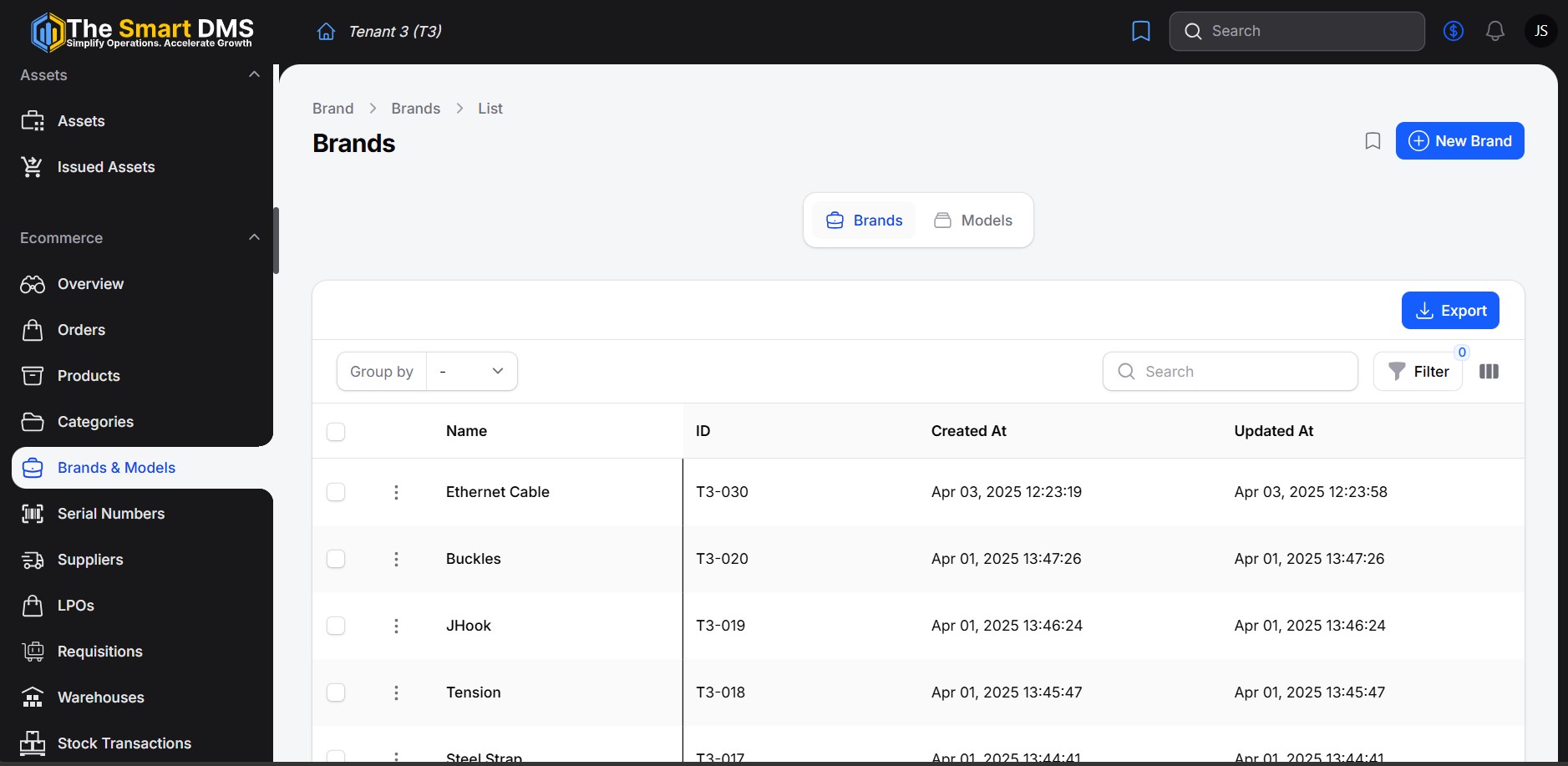
Brands and models help you organise products by manufacturer or brand and identify specific product models. For example, Samsung is a brand, while Galaxy S24 is a model belonging to that brand.
Access this section under Ecommerce → Brands & Models.
Managing Brands #
Open Brands to view existing brands or create a new one.
When creating or editing a brand, complete the following fields:
| Field | Required | Description |
|---|---|---|
| Name | Yes | Enter the brand name, such as Samsung, Apple, or Bosch. |
| Description | No | Add background information or other relevant details about the brand. The editor supports formatted text, links, lists, and tables. |
Save the form to store the brand. It will then be available for selection when creating a model.
Managing Models #
Open Models to view existing models and their associated brands, or create a new model.
When creating or editing a model, complete the following fields:
| Field | Required | Description |
|---|---|---|
| Name | Yes | Enter the model name or identifier, such as Galaxy S24. |
| Brand | Yes | Select the brand to which the model belongs. |
| Description | No | Add specifications, distinguishing features, or other useful information about the model. The editor supports formatted text, links, lists, and tables. |
Save the form to store the model.
Creating a Brand from the Model Form #
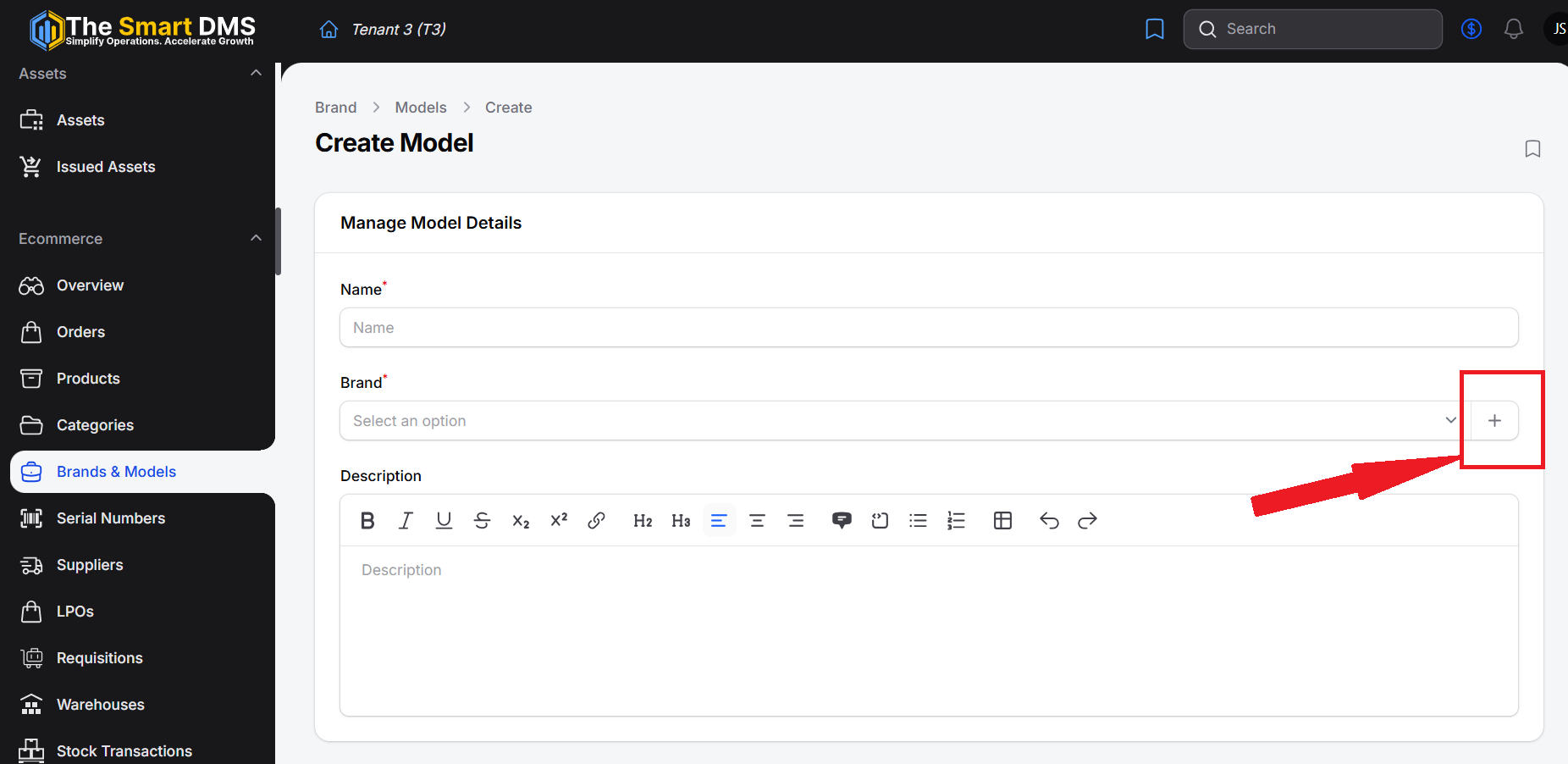
If the required brand is missing from the Brand dropdown, use the create option beside the field. Enter the brand’s name and an optional description, then save it and continue completing the model.
You can also edit the selected brand directly from this field. These options are available according to your permissions.


